Track every hour. Right from your desk.
A small window for your timer, screenshots and checklists — beside the work you are doing, not in another browser tab.
Windows 10 or 11, 64-bit · Updates install automatically
 10:42
10:42The desktop app in 5 minutes
Every step on the real app. Jump to any chapter.
Sign in once
The same Projments account you use on the web and on Android. No new password, no setup.
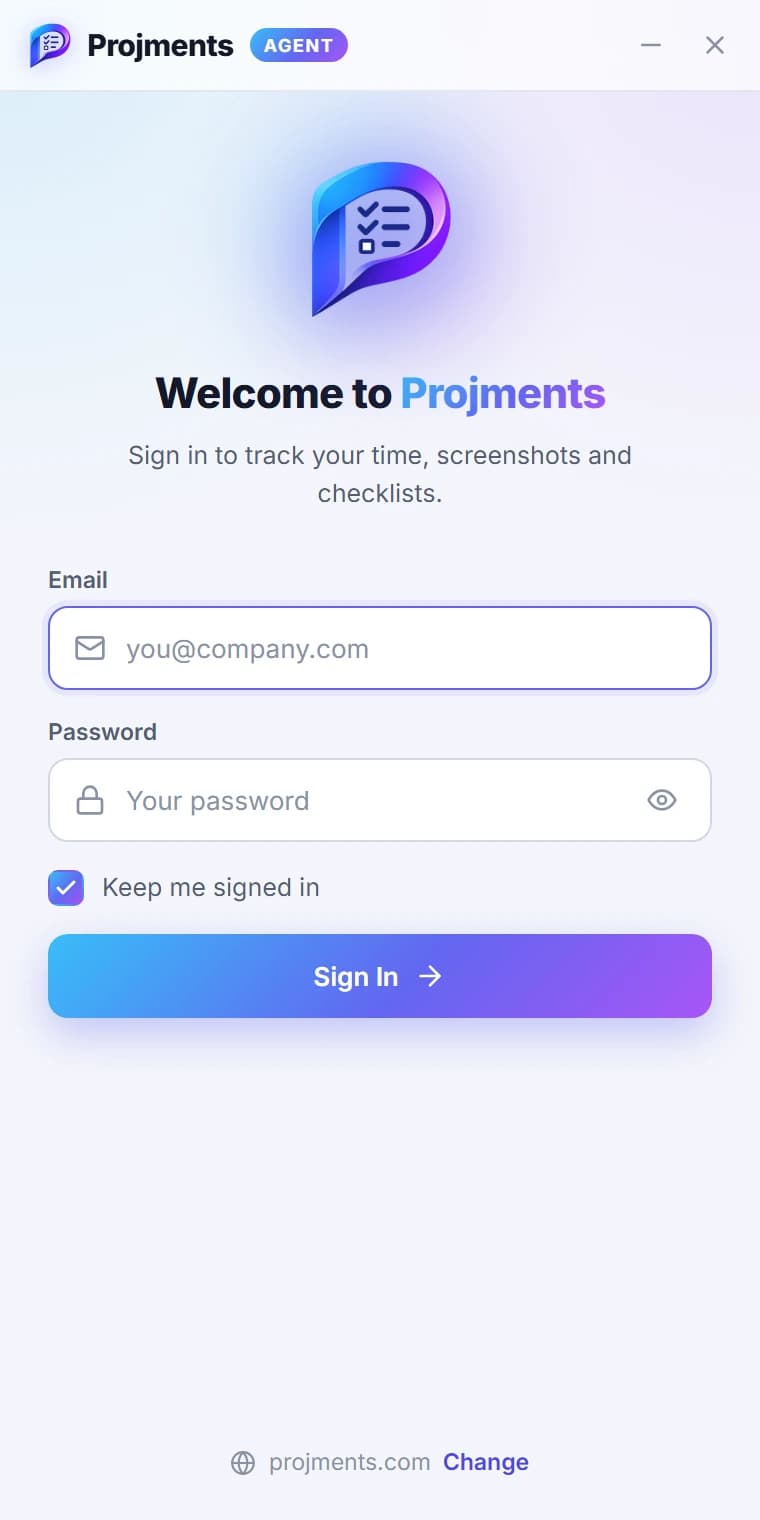
Email and password — nothing new to create.
Stays signed in with an encrypted token. Your password is never saved on the PC.
Your projects, tasks and checklists load straight away.
Connects to projments.com by default.
- 1Your Projments accountEmail and password — nothing new to create.
- 2Keep me signed inStays signed in with an encrypted token. Your password is never saved on the PC.
- 3One click inYour projects, tasks and checklists load straight away.
- 4ServerConnects to projments.com by default.
Pick a task, press start
Project → submission → task, the same tree as the website — searchable at every level.
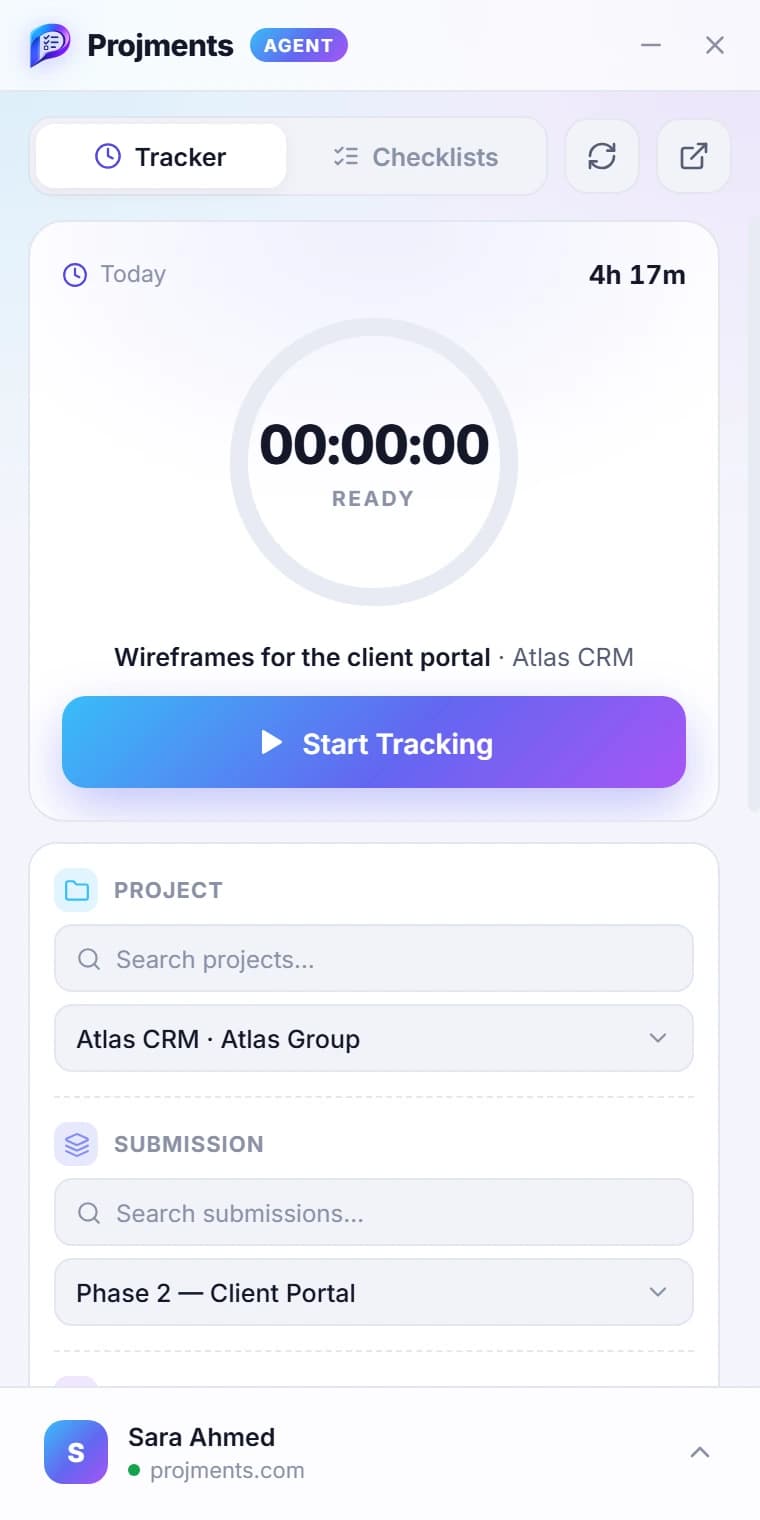
The ring fills once every hour while you work.
Find a project, a submission and a task in seconds.
Everything you have tracked today, on every project.
One click — the timer runs on the server, like on the web and on your phone.
- 1ReadyThe ring fills once every hour while you work.
- 2TodayEverything you have tracked today, on every project.
- 3Start TrackingOne click — the timer runs on the server, like on the web and on your phone.
- 4Search, then pickFind a project, a submission and a task in seconds.
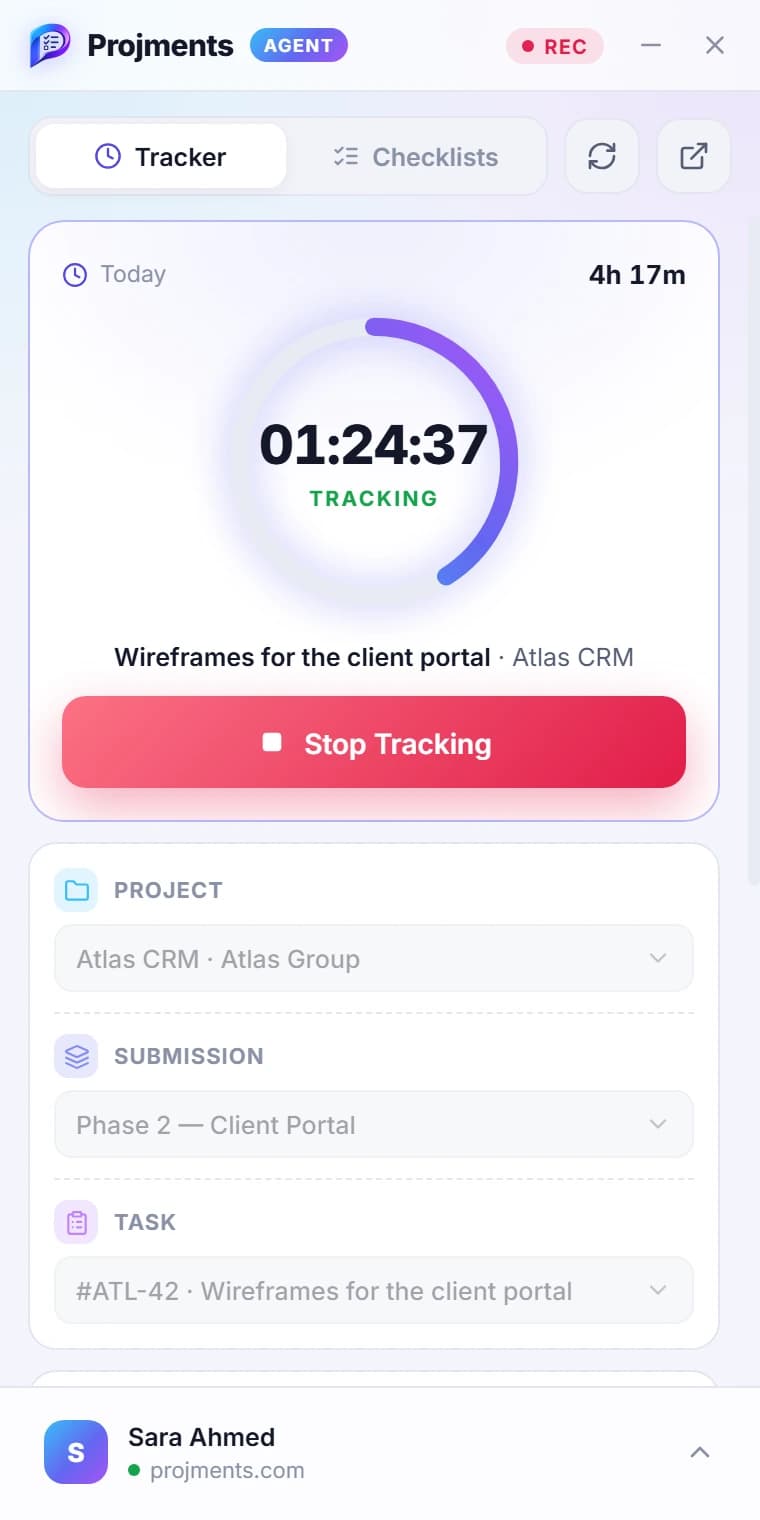
Your timer, always in view
A small window beside your work. Every second lands on the task, the project and your timesheet.
Counts the session; Today above adds it to the day.
The task can’t change mid-session, so no hour lands on the wrong task.
Shows in the title bar for as long as a session records.
Ends the time entry — it is on the task and in your Time Tracker at once.
- 1RECShows in the title bar for as long as a session records.
- 2Live timerCounts the session; Today above adds it to the day.
- 3Stop TrackingEnds the time entry — it is on the task and in your Time Tracker at once.
- 4Locked while you trackThe task can’t change mid-session, so no hour lands on the wrong task.
Screenshots, in the open
Only while your own timer runs, on the schedule your workspace sets — and you always see the last one.
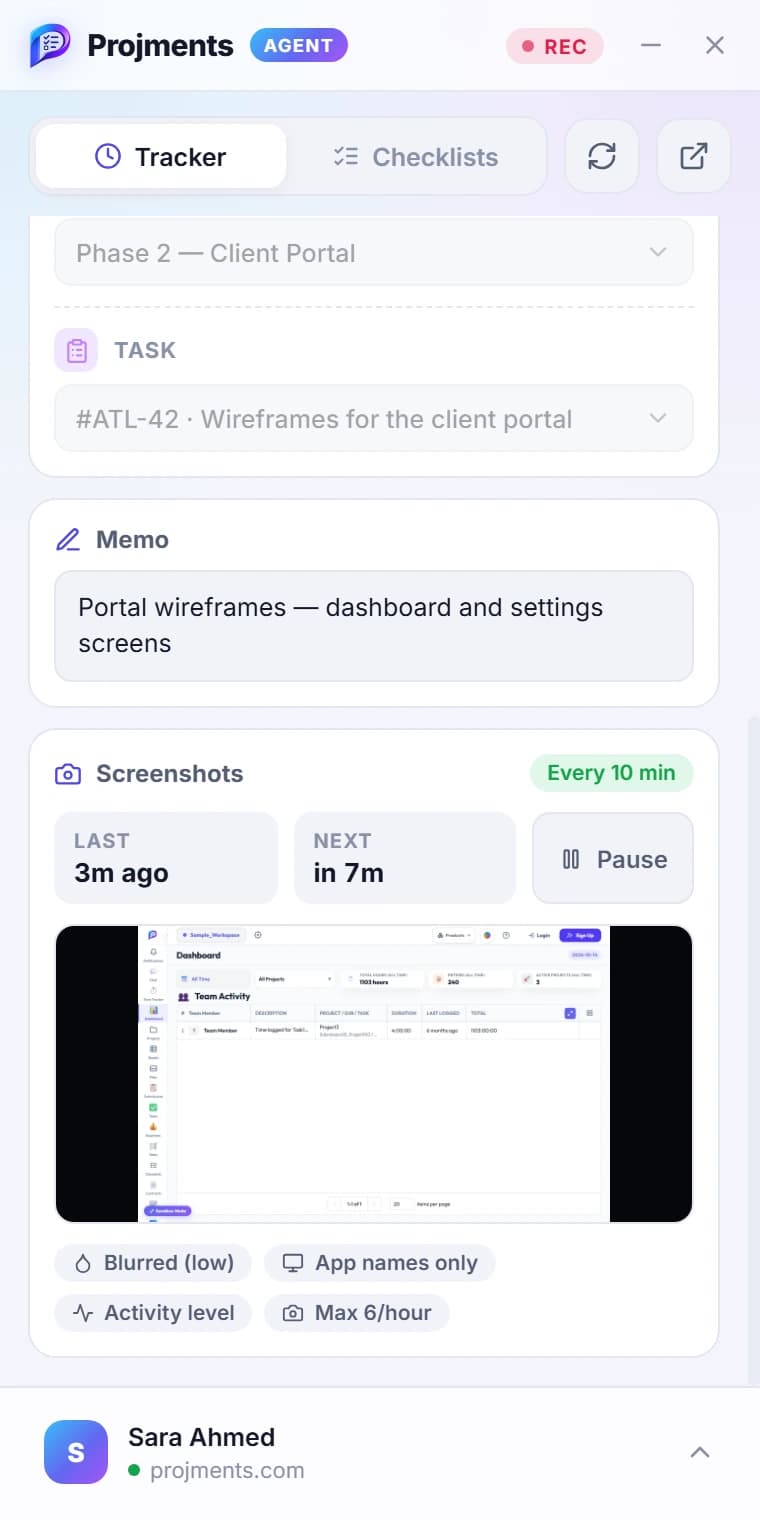
What you are working on — saved to the time entry as you type.
When the last capture was taken and when the next one is due.
Your workspace’s privacy settings, in plain words: blur, app names, activity, hourly cap.
Set by your workspace — here, every 10 minutes. Pause appears when your workspace allows it.
Exactly what was uploaded — every screen you have, in one image.
- 1MemoWhat you are working on — saved to the time entry as you type.
- 2ScheduleSet by your workspace — here, every 10 minutes. Pause appears when your workspace allows it.
- 3Last and nextWhen the last capture was taken and when the next one is due.
- 4Your latest screenshotExactly what was uploaded — every screen you have, in one image.
- 5What is recordedYour workspace’s privacy settings, in plain words: blur, app names, activity, hourly cap.
Checklists without the browser
The project’s checklists, one tab away. Tick an item and it is saved to the project.
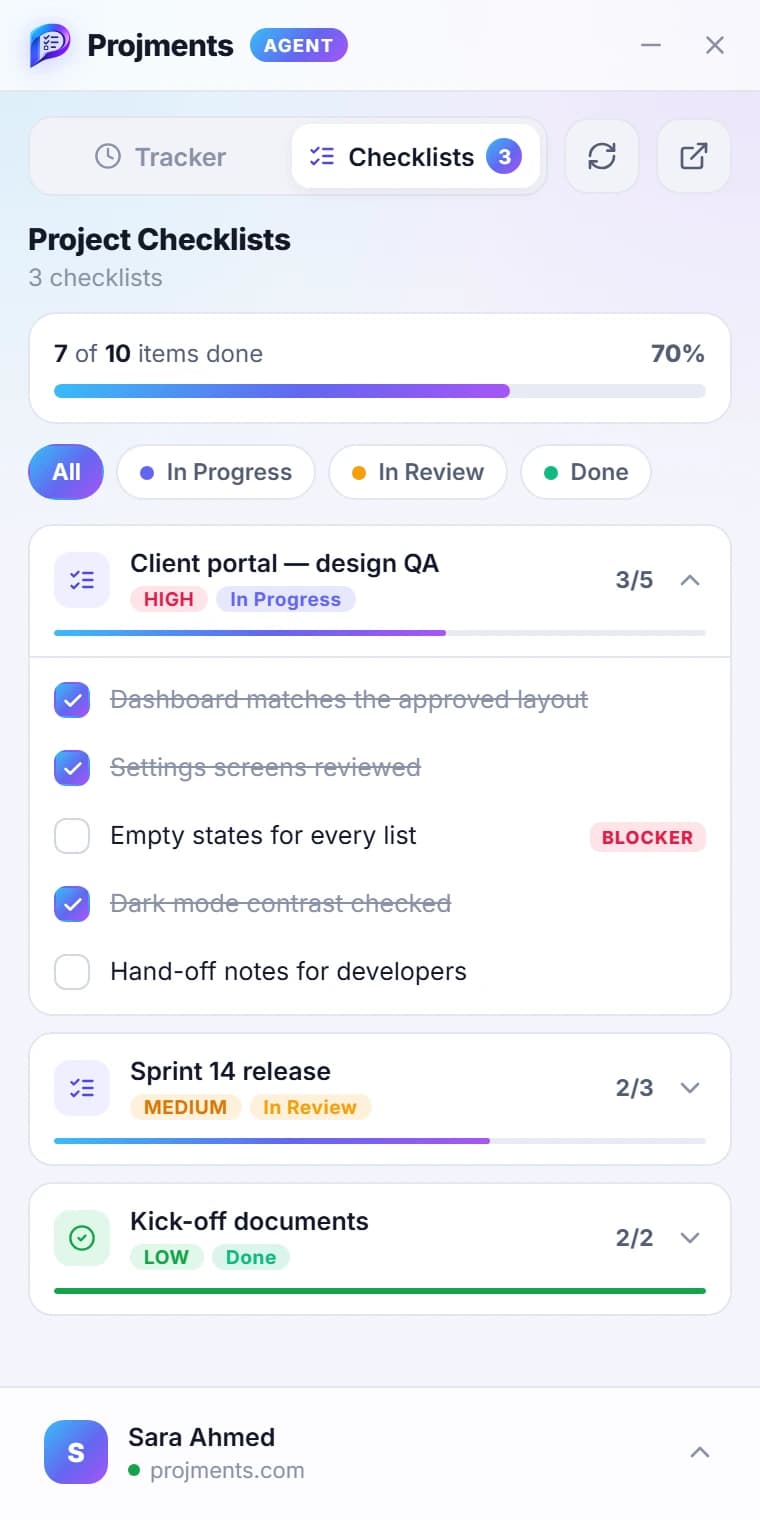
Done items across all of the project’s checklists.
Saved straight to the project — the web sees it too.
The badge counts everything still unchecked.
Your workspace’s own statuses, one tap each.
Items marked as blockers stand out in red.
- 1Items leftThe badge counts everything still unchecked.
- 2ProgressDone items across all of the project’s checklists.
- 3Filter by statusYour workspace’s own statuses, one tap each.
- 4Tick it offSaved straight to the project — the web sees it too.
- 5BlockersItems marked as blockers stand out in red.
Away from the desk? It asks.
No keyboard or mouse activity for a while, and the agent asks before that time counts.
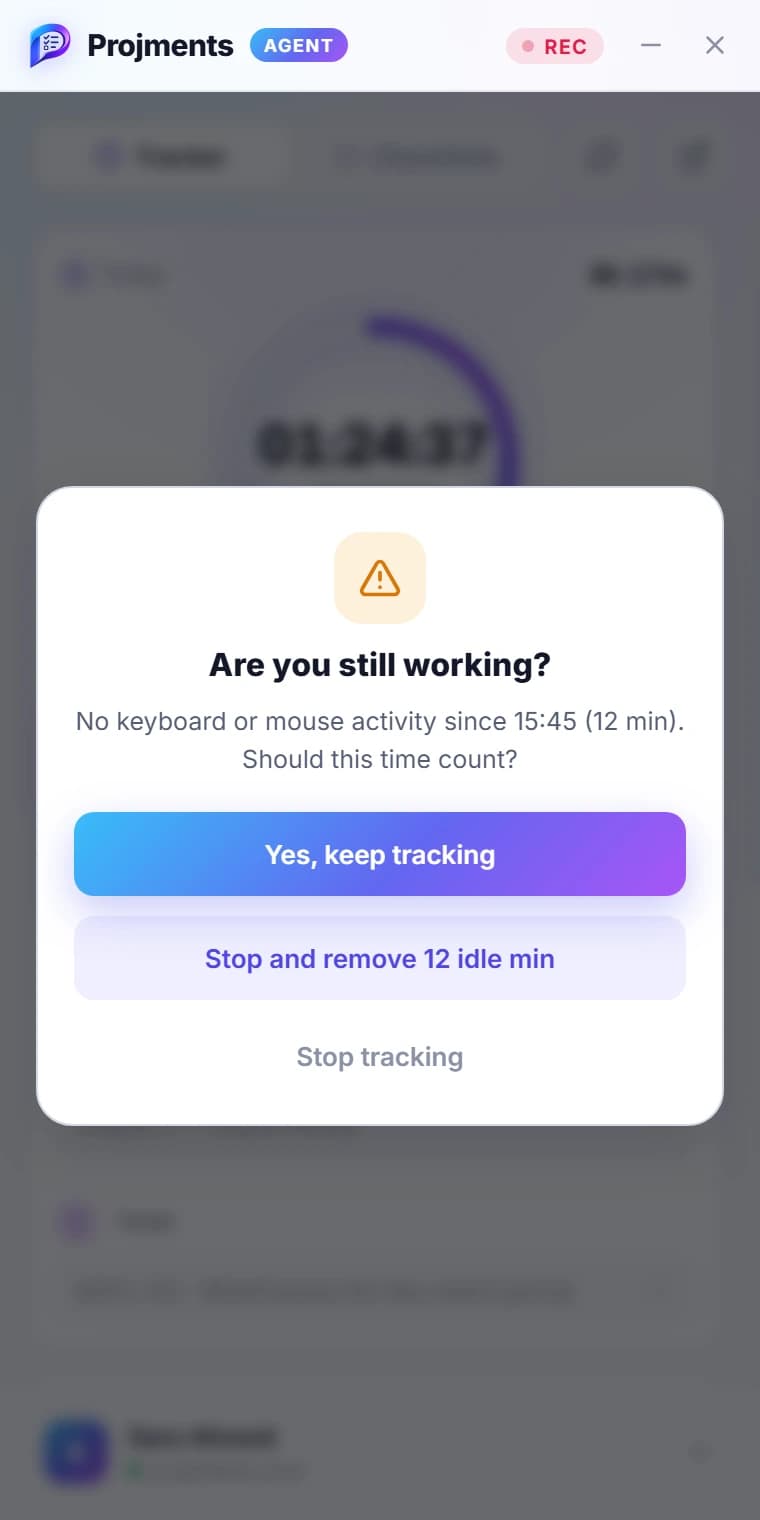
The exact time you went idle, and for how long.
Stops the session at the moment you went idle.
You were working — keep every minute.
Ends the session now.
- 1Since whenThe exact time you went idle, and for how long.
- 2Keep trackingYou were working — keep every minute.
- 3Remove the idle timeStops the session at the moment you went idle.
- 4Stop trackingEnds the session now.
Set it up your way
Everything personal sits in the account menu at the bottom of the window.
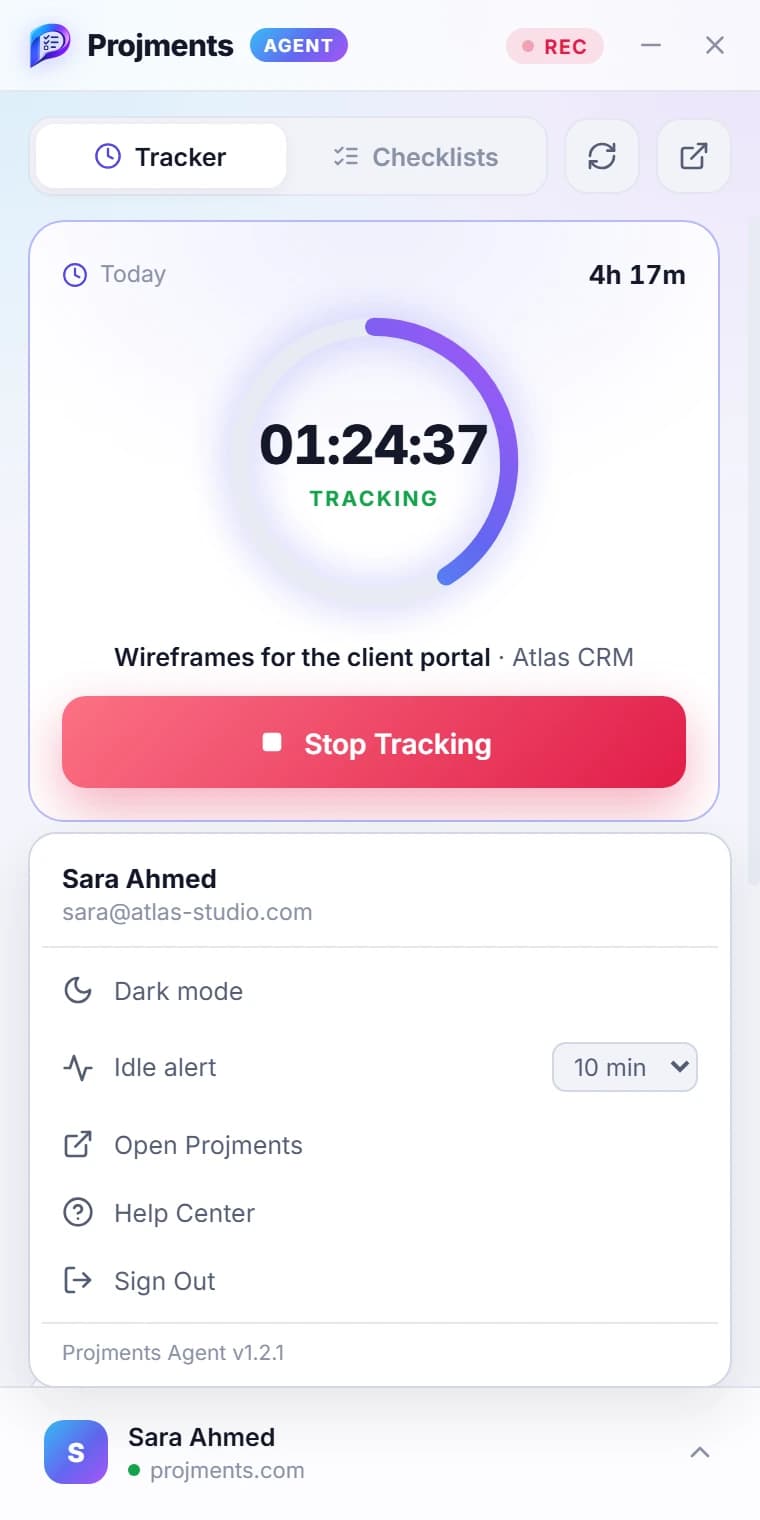
Pick the theme that suits your desk.
Jump to the web app or the Help Center.
After 5, 10, 15 or 30 minutes — or off.
- 1Light or darkPick the theme that suits your desk.
- 2Idle alertAfter 5, 10, 15 or 30 minutes — or off.
- 3Open ProjmentsJump to the web app or the Help Center.
Looks right on any desk
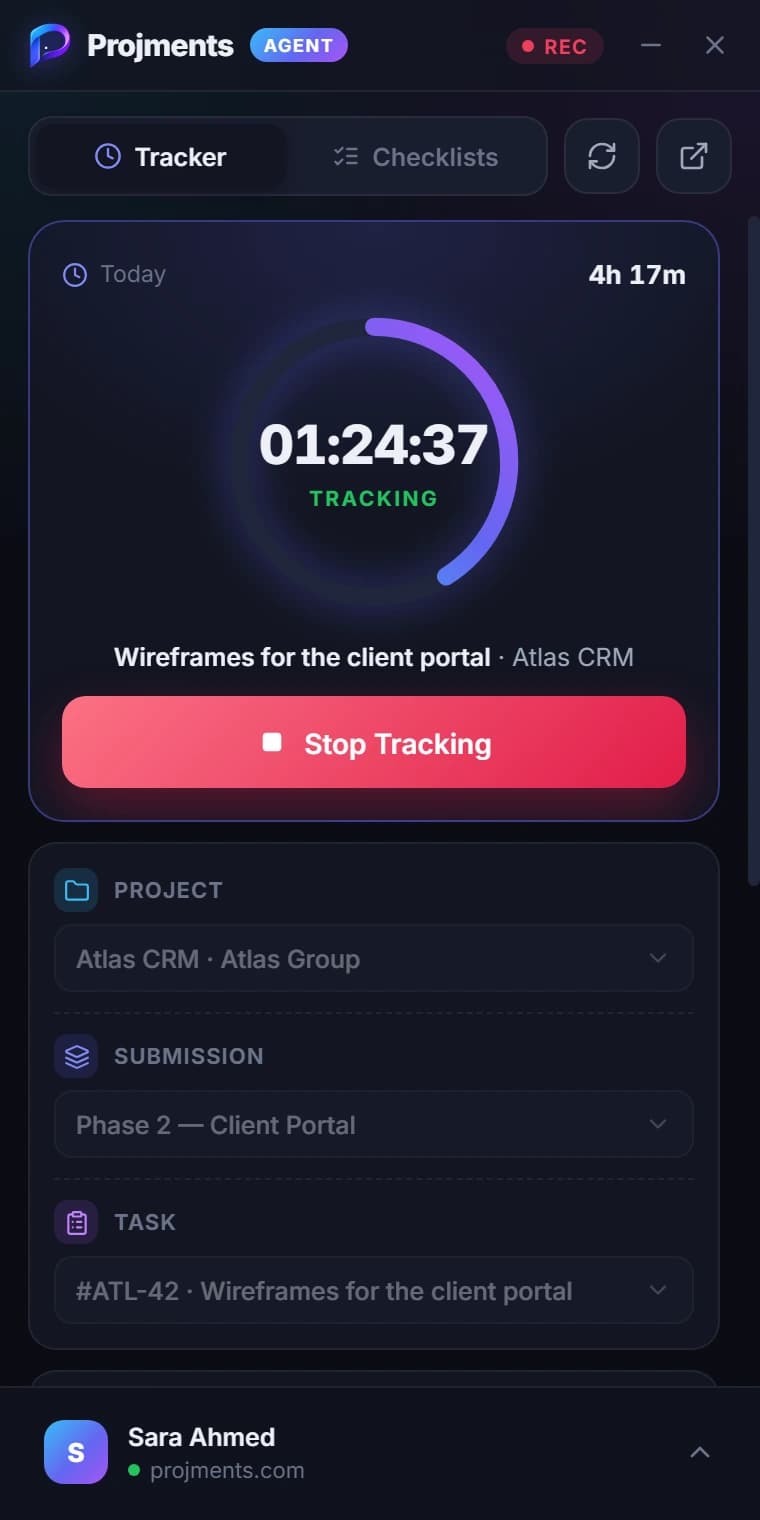
Fair by design
Only while your timer runs
No timer, no screenshots, no activity — the agent records nothing in between.
You see every capture
A short flash on screen right after each screenshot, and the last one is always in the window.
Every screen, one image
Two or three monitors are stitched into a single screenshot.
Sleep stops the clock
If the computer goes to sleep, tracking stops — the night never counts.
Lives in the tray
Closing the window hides it next to the clock; the timer keeps running.
Always up to date
New versions download and install by themselves.
Screenshots are a Professional plan feature. Exactly what is captured is in the Monitoring Notice.
Ready when you are
Install it, sign in with your Projments account, and press Start Tracking.
The pictures on this page are the agent's own screens, shown with sample data.
Ready to Supercharge Your Team?
Projects, time, collaboration and results — all in one workspace.
✓Free plan available✓No credit card required✓Cancel anytime