Drawings, revisions and redlines in one place
Upload PDF drawing sets and keep every revision. Compare versions side by side, and mark up drawings with redlines that each belong to a task.
Professional plan
Sheets & Markups in 3 minutes
Every step on the real app. Jump to any chapter.
Drawings per project
Every project’s drawing set, with the number of sheets in it.
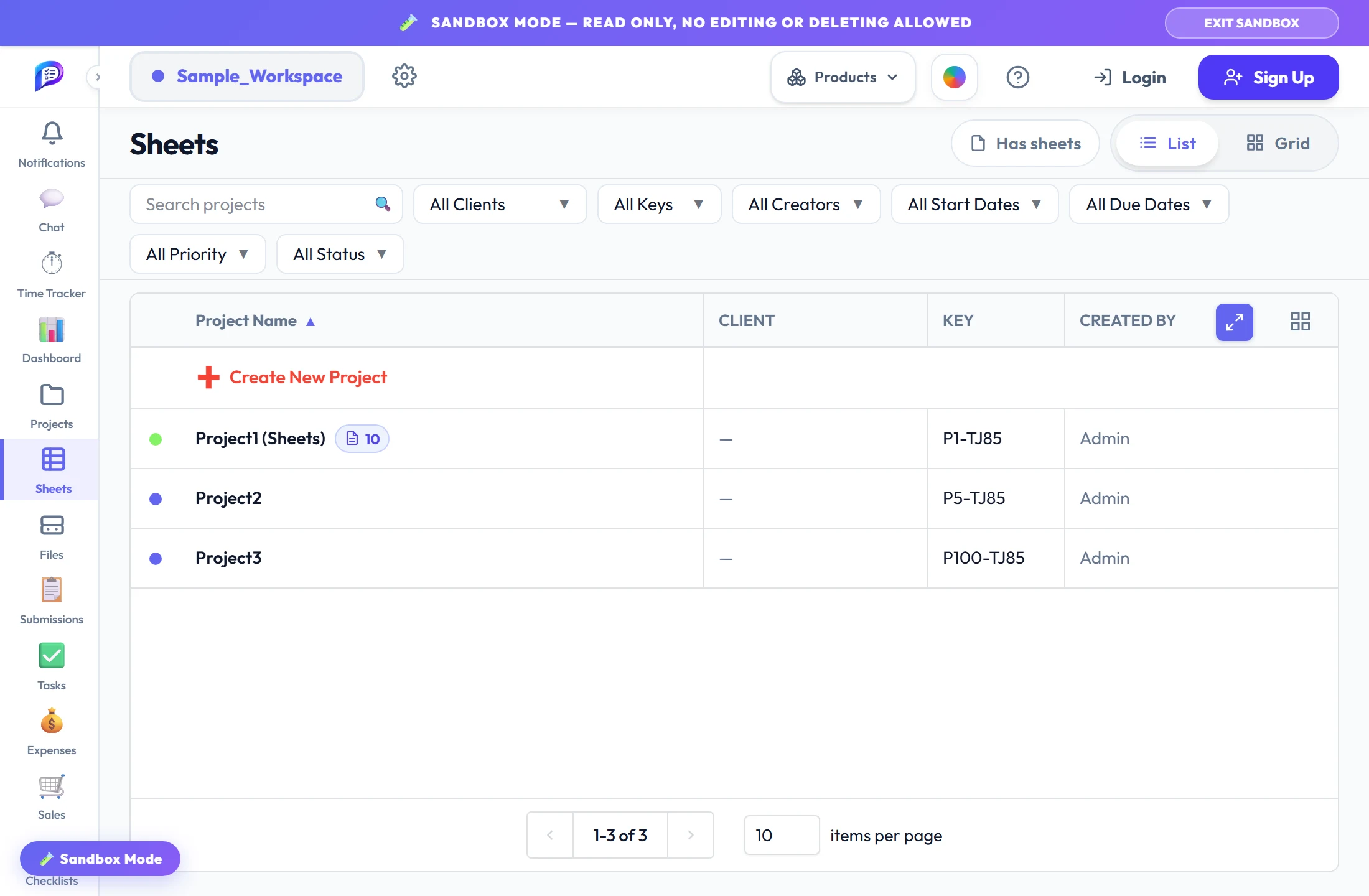
How many drawings each project holds.
Show just the projects that have sheets.
Browse as a table or as thumbnails.
- 1Only with drawingsShow just the projects that have sheets.
- 2Sheet countHow many drawings each project holds.
- 3List or GridBrowse as a table or as thumbnails.
Folders, sheets and every revision
An Explorer of folders, the sheets in the middle, and Sheet Info with every version on the right.
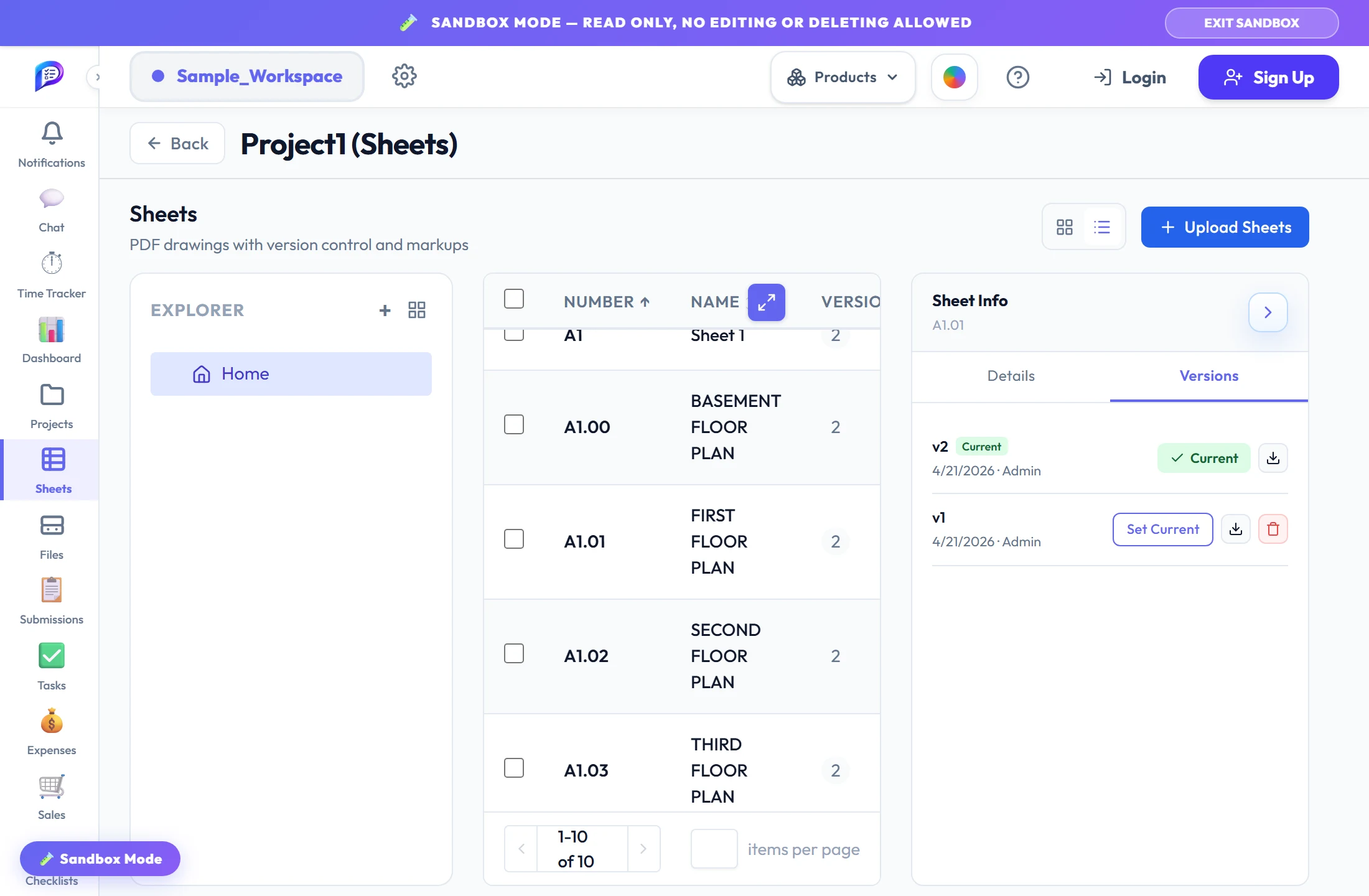
Folders for your sheets — drag a sheet onto one to move it.
Double-click any sheet to open it full screen.
Mark the title block once; every page’s number and name is read.
Choose which one opens and exports, or download any of them.
- 1ExplorerFolders for your sheets — drag a sheet onto one to move it.
- 2Open the viewerDouble-click any sheet to open it full screen.
- 3Smart uploadMark the title block once; every page’s number and name is read.
- 4Every version keptChoose which one opens and exports, or download any of them.
The drawing, full screen
Zoom toward the pointer, drag to pan, and the drawing re-renders sharp when you stop.
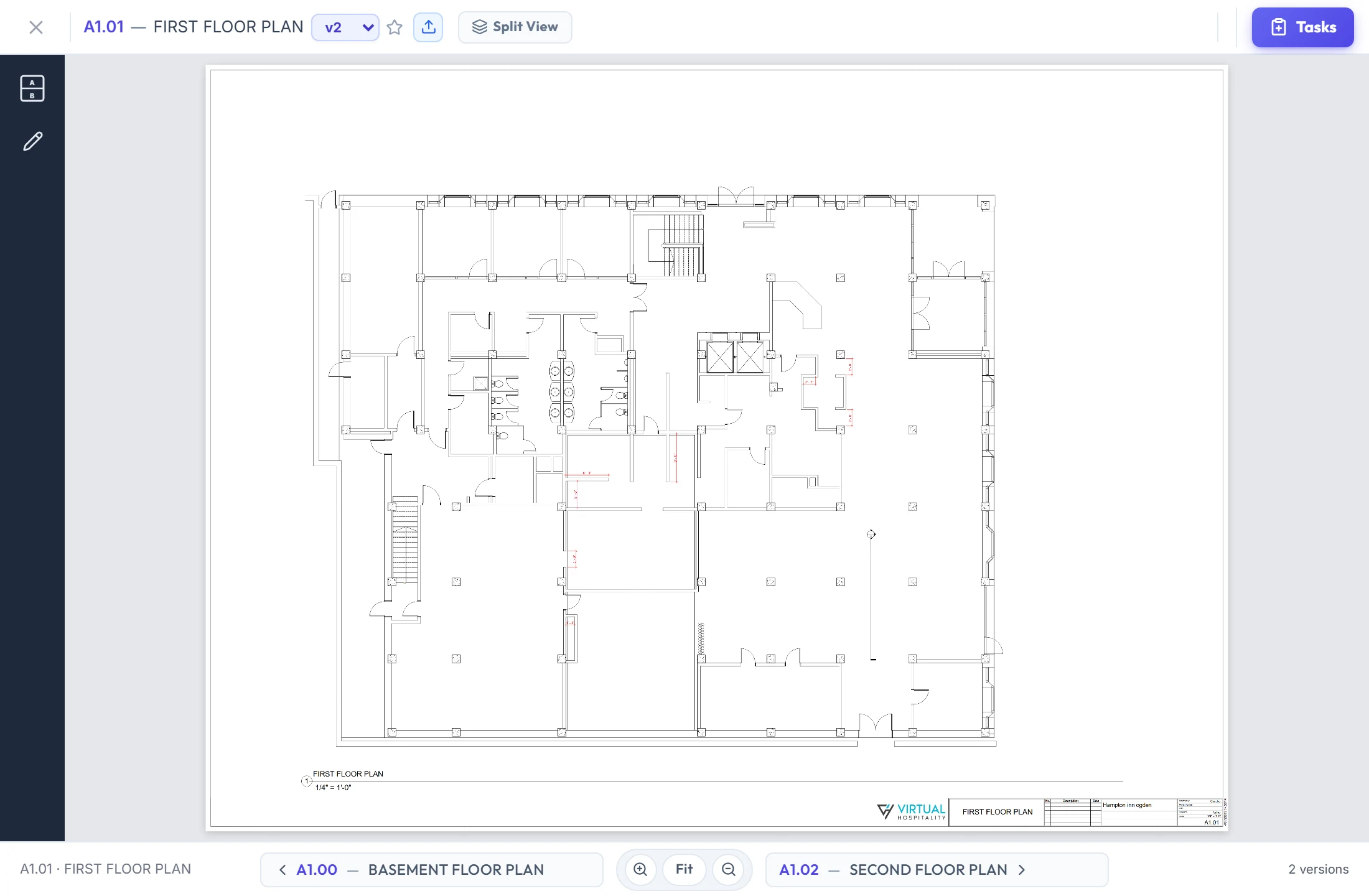
Switch version, star it as current, or upload a new one.
Step through the folder without leaving the viewer.
Two drawings side by side.
Or use the mouse wheel and a pinch.
- 1Versions at the topSwitch version, star it as current, or upload a new one.
- 2Split ViewTwo drawings side by side.
- 3Previous and next sheetStep through the folder without leaving the viewer.
- 4Zoom and fitOr use the mouse wheel and a pinch.
Every redline belongs to a task
Pick a task in the Tasks panel and the drawing shows its markups, so every redline has someone responsible for it.
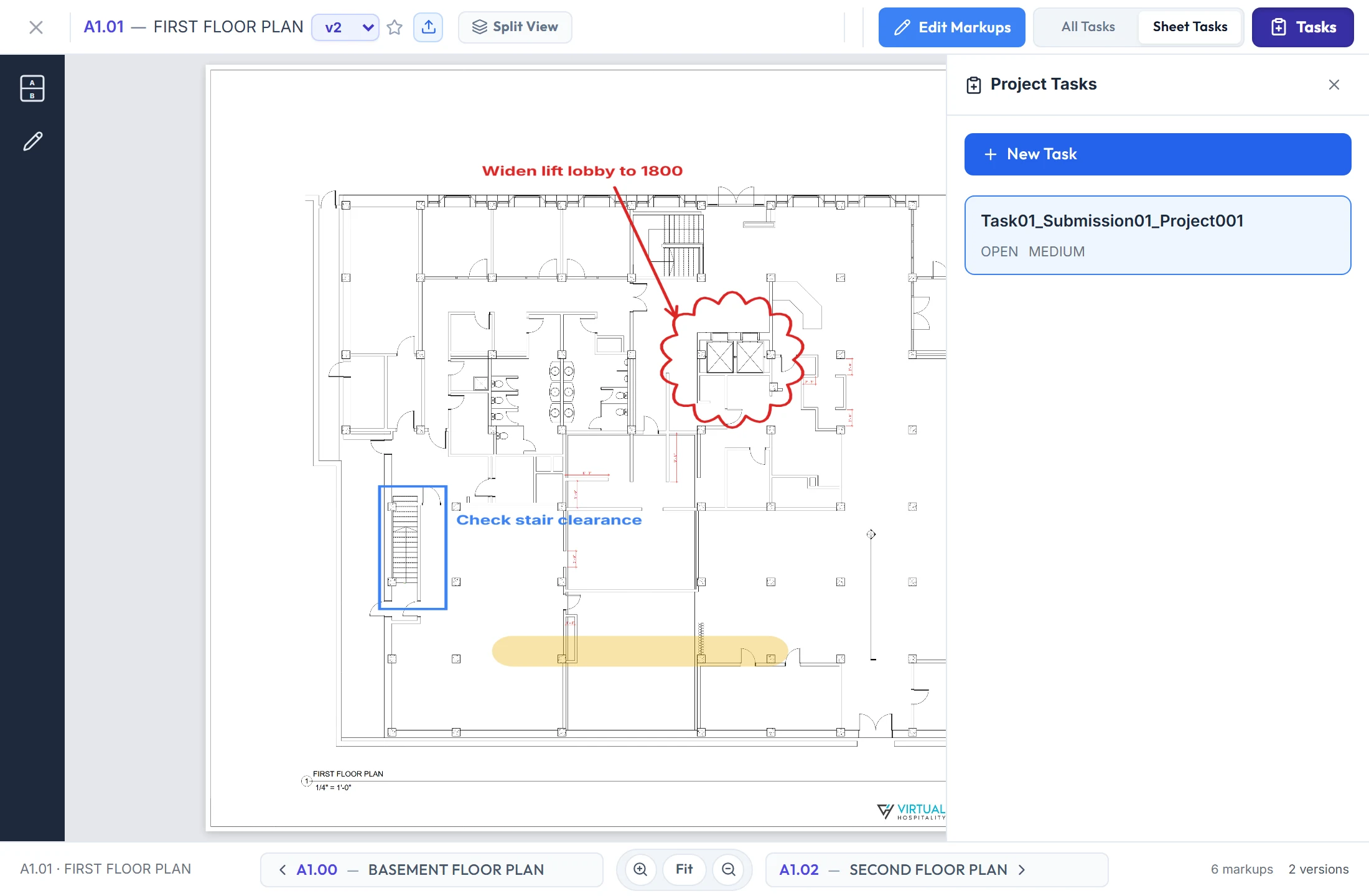
Clouds, arrows, boxes, highlights and text.
Every task, or only the ones marked up on this version.
Click a task to show its markups; double-click for its details.
Markups stay with the version they were drawn on.
- 1Redlines on the drawingClouds, arrows, boxes, highlights and text.
- 2All or Sheet TasksEvery task, or only the ones marked up on this version.
- 3One task at a timeClick a task to show its markups; double-click for its details.
- 4Counted per versionMarkups stay with the version they were drawn on.
Mark up right on the sheet
Edit Markups opens the tools on the left; each mark is saved to the selected task as you draw.
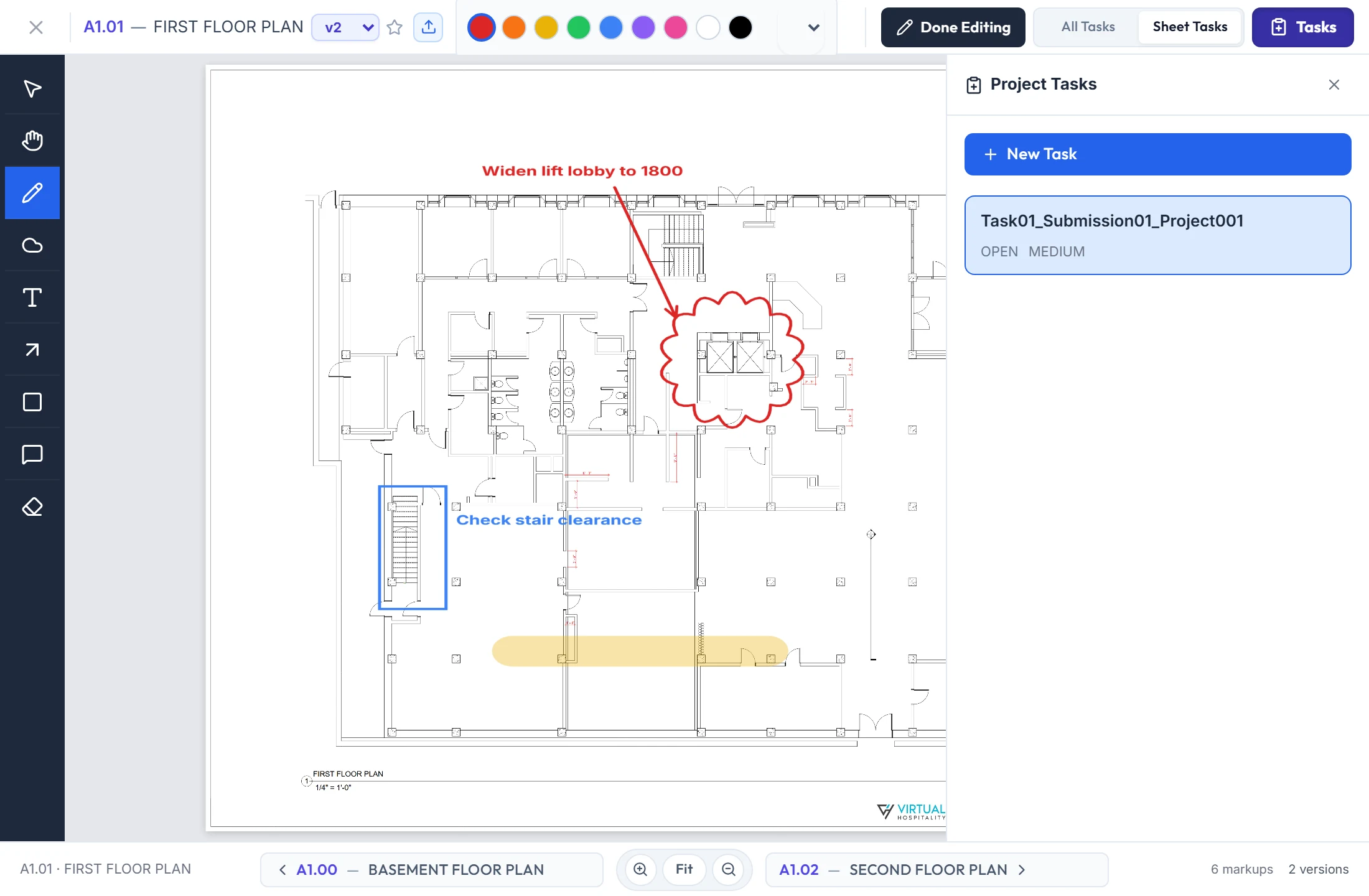
Pan, pen, cloud, text, arrow, rectangle, callout and eraser.
Click a markup to remove it.
Nine colours and line widths from 1 to 20 px.
Back to viewing when you’re finished.
- 1Eight toolsPan, pen, cloud, text, arrow, rectangle, callout and eraser.
- 2Colour and widthNine colours and line widths from 1 to 20 px.
- 3Done EditingBack to viewing when you’re finished.
- 4EraserClick a markup to remove it.
Draw the problem, assign the fix
New Task opens the drawing tools: mark up the issue, give it a title, priority, assignee and due date, and create the task.
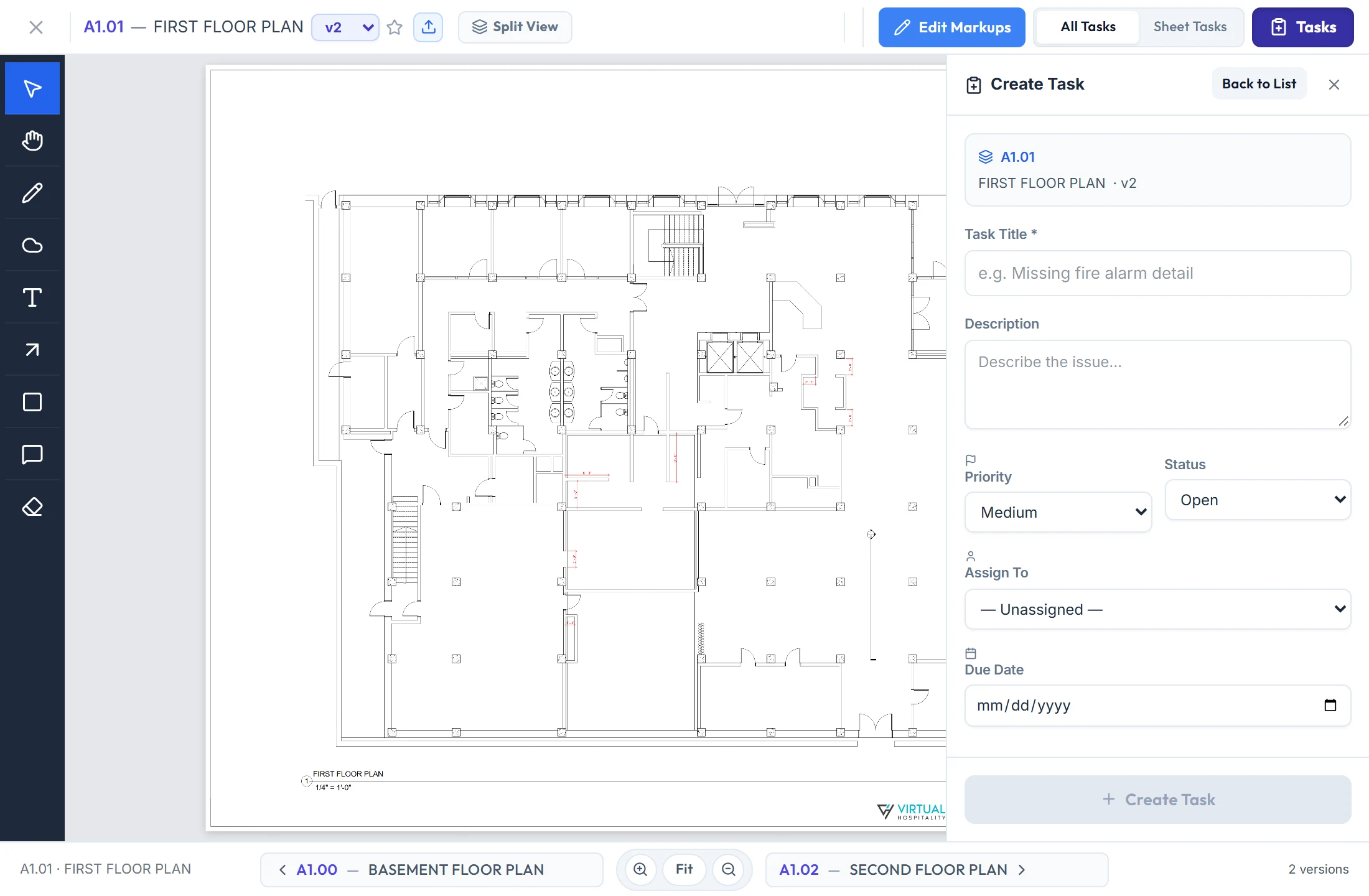
The marks are saved with the new task.
The sheet and version the task was raised on.
It lands in the project’s Tasks with everything else.
Any member who can reach the project.
- 1Draw firstThe marks are saved with the new task.
- 2Tied to this sheetThe sheet and version the task was raised on.
- 3A real taskIt lands in the project’s Tasks with everything else.
- 4Someone responsibleAny member who can reach the project.
Lay one version over another
Compare Sheets puts drawing B over drawing A — any sheet in the project, any version.
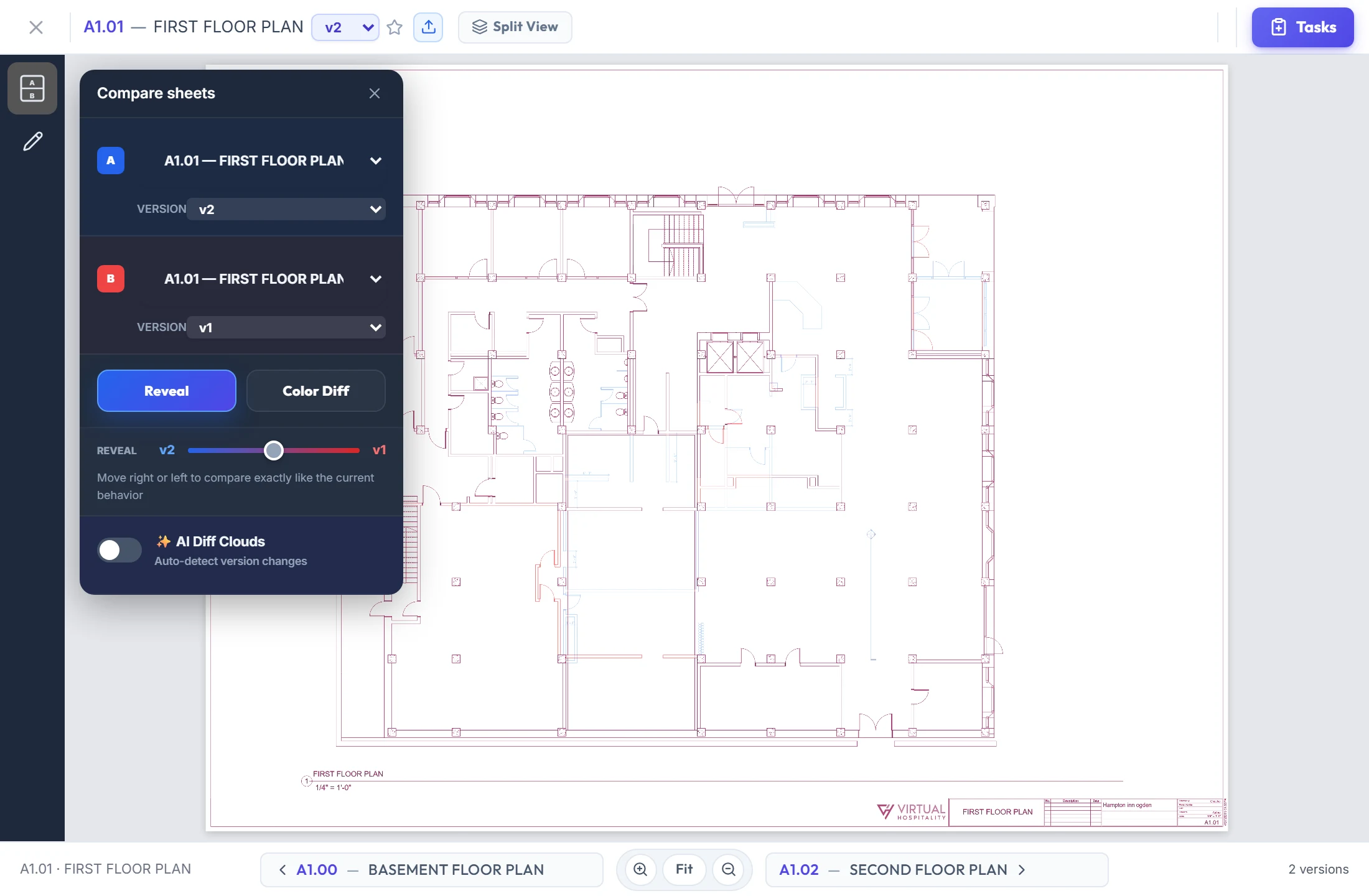
A is the open sheet; B starts on the version before it.
Slide from A in blue to B in red.
See what moved without flipping pages.
- 1Pick A and BA is the open sheet; B starts on the version before it.
- 2RevealSlide from A in blue to B in red.
- 3Both drawings at onceSee what moved without flipping pages.
What changed, boxed for you
Color Diff turns lines that are only in A blue, and AI Diff Clouds draws a box around every area that changed.
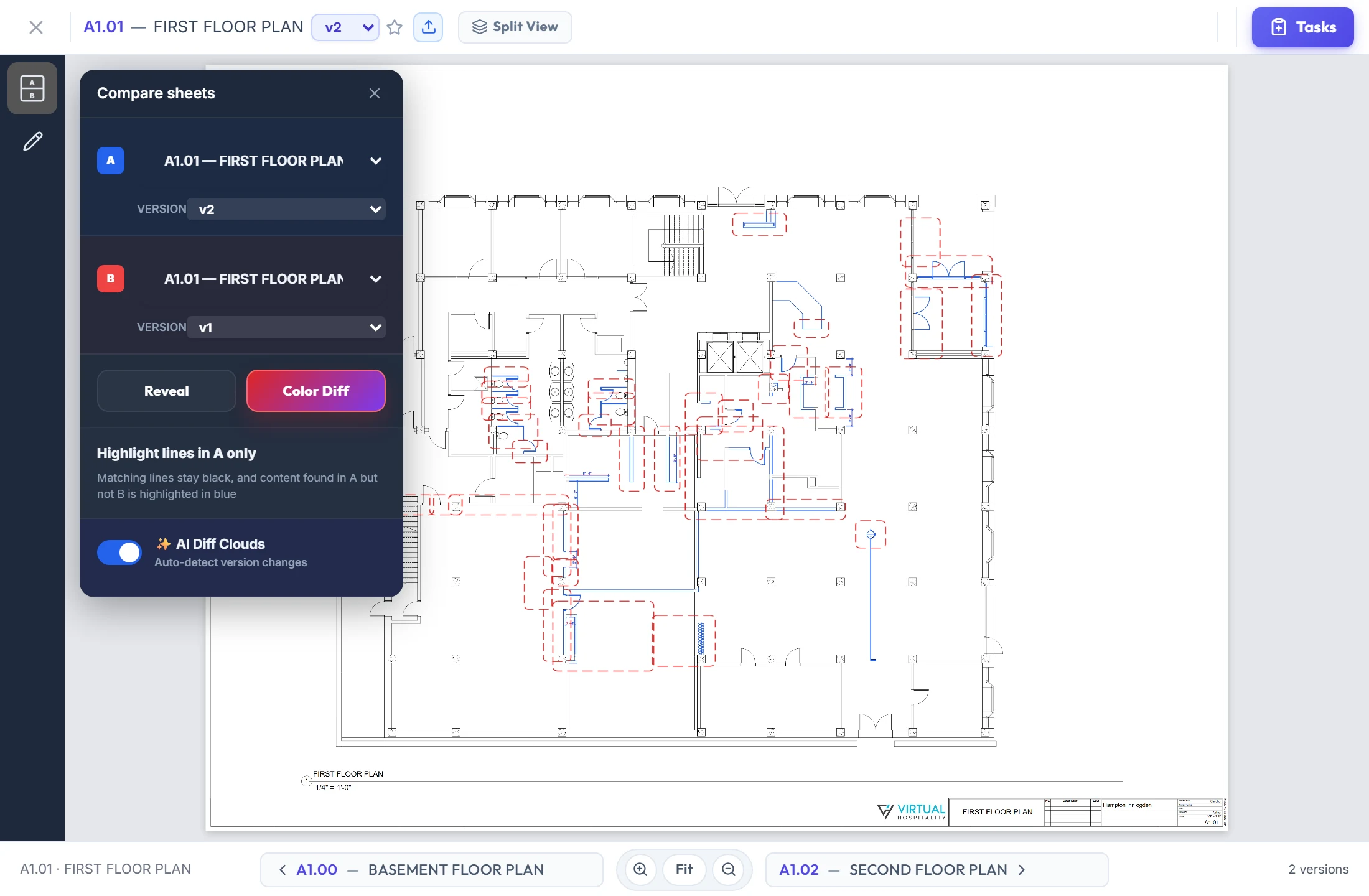
Matching lines stay black; lines only in A turn blue.
Compared in your browser — nothing is uploaded.
Red dashed boxes that update when you change either version.
- 1Color DiffMatching lines stay black; lines only in A turn blue.
- 2AI Diff CloudsCompared in your browser — nothing is uploaded.
- 3Every change, cloudedRed dashed boxes that update when you change either version.
Two drawings, side by side
Any sheet and version on each side, zooming and panning together.
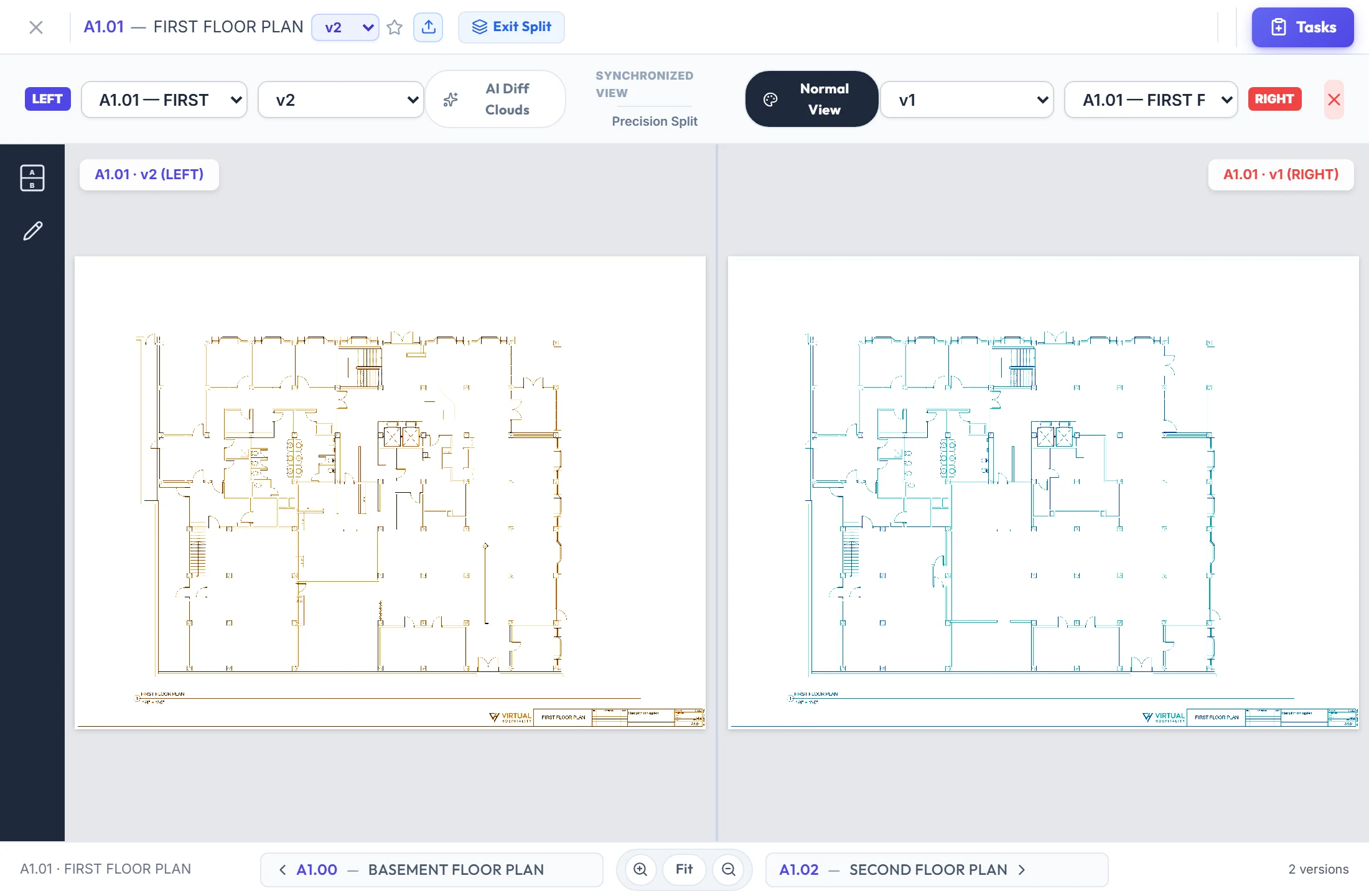
Zoom or pan one side and the other follows.
Any sheet and any version, left and right.
Exit Split returns to the viewer.
Colours each side so you can tell them apart.
- 1Choose each sideAny sheet and any version, left and right.
- 2Moves togetherZoom or pan one side and the other follows.
- 3Tint VersionsColours each side so you can tell them apart.
- 4Back to one drawingExit Split returns to the viewer.
Good to know
Smart upload
Mark where the sheet number and name sit in the title block once. They are read from every page that has text.
Every revision kept
Uploading a sheet number that already exists adds a new version. Set Current chooses which version opens and exports.
Compare Sheets
Lay one version over another with Reveal, Color Diff, or AI Diff Clouds, which boxes the areas that changed.
Split View
Two drawings side by side that zoom and pan together. Tint Versions colours them blue and red.
Markups become tasks
Every markup is attached to a task, so each redline has someone responsible for it.
PDF export
Export one combined PDF or one file per sheet, with or without markups.
Works hand in hand with
The pictures on this page are screenshots of Projments with a sample company's data.
Ready to Supercharge Your Team?
Projects, time, collaboration and results — all in one workspace.
✓Free plan available✓No credit card required✓Cancel anytime