Clock in, take a break, see who is at work
People clock in and out with their breaks, from the office, from home or both. Managers see who is at work, fix what went wrong and compare attendance with the time tracked on tasks.
Starter and Professional plans
Attendance in 6 minutes
Every step on the real app. Jump to any chapter.
Start the day with one click
Clock in, take a break and clock out from the card at the top of the Attendance page.
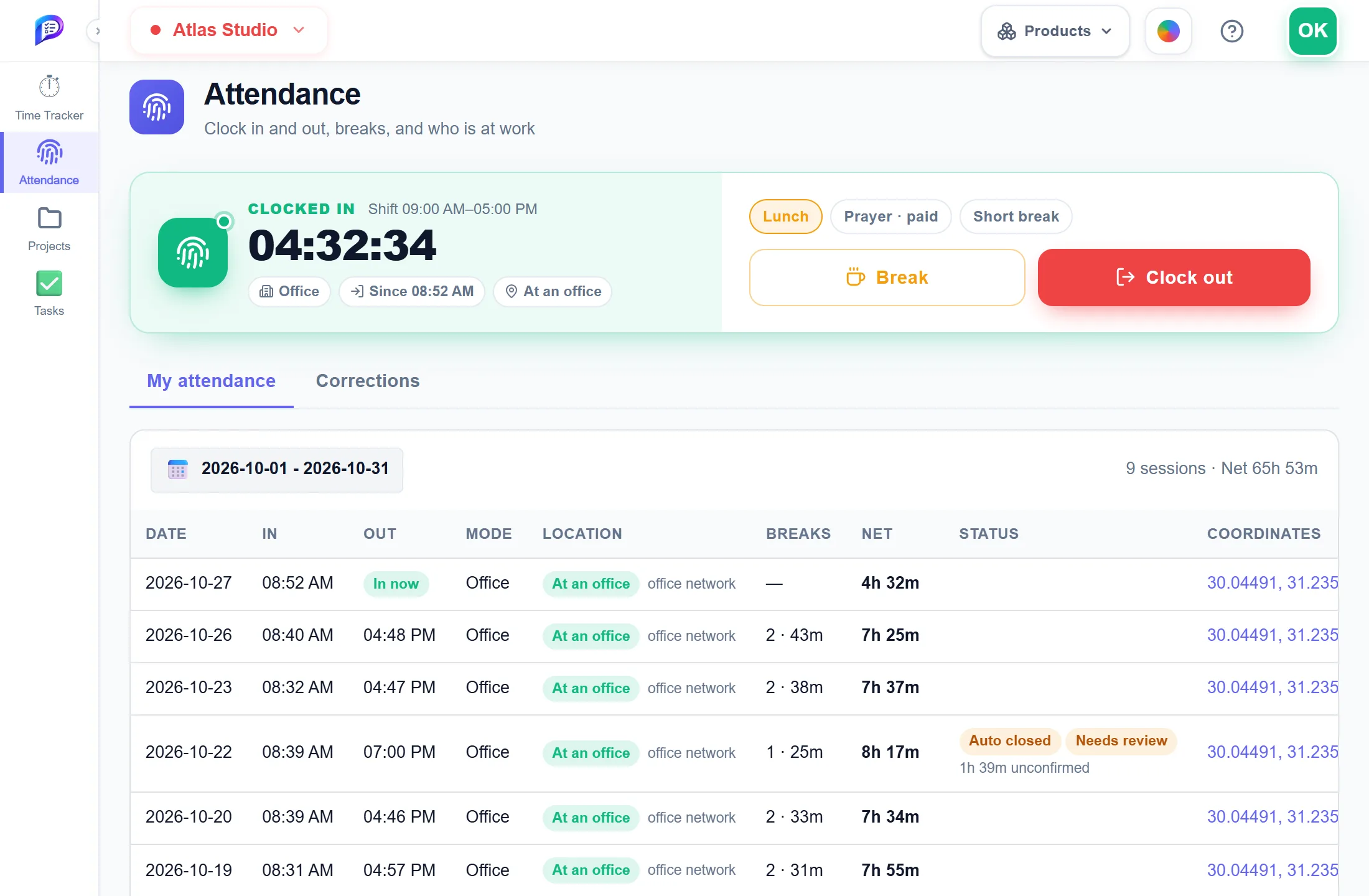
Your work mode, when you came in, and the time since.
Your sessions for any period, with the net time.
Lunch, prayer or a short break — paid or unpaid.
Ends the session. Times come from the server.
- 1Running timeYour work mode, when you came in, and the time since.
- 2BreaksLunch, prayer or a short break — paid or unpaid.
- 3Clock outEnds the session. Times come from the server.
- 4My attendanceYour sessions for any period, with the net time.
Who is at work right now
One row per person: at work, on a break, not clocked in or on leave, with their breaks and net time.
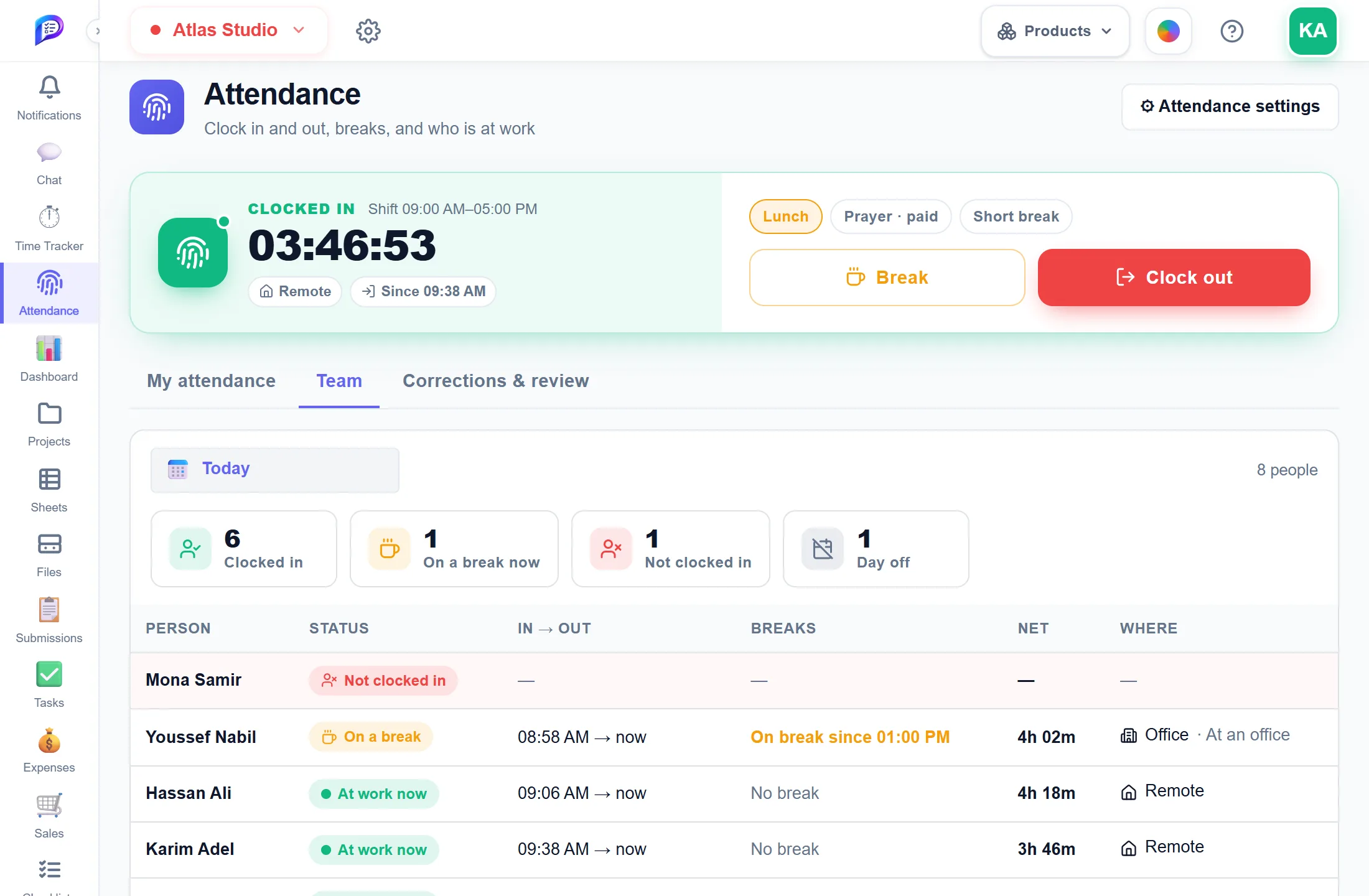
Click a count to list only those people.
At work now, on a break, clocked out or on leave.
Attendance minus breaks, for today or any period.
And whether an office clock-in was at an office.
- 1Counts at a glanceClick a count to list only those people.
- 2Live statusAt work now, on a break, clocked out or on leave.
- 3Net timeAttendance minus breaks, for today or any period.
- 4Office or remoteAnd whether an office clock-in was at an office.
Forgot to clock out? Ask, don’t edit
People ask for a fix with a reason; a manager approves or rejects it, and every change is kept.
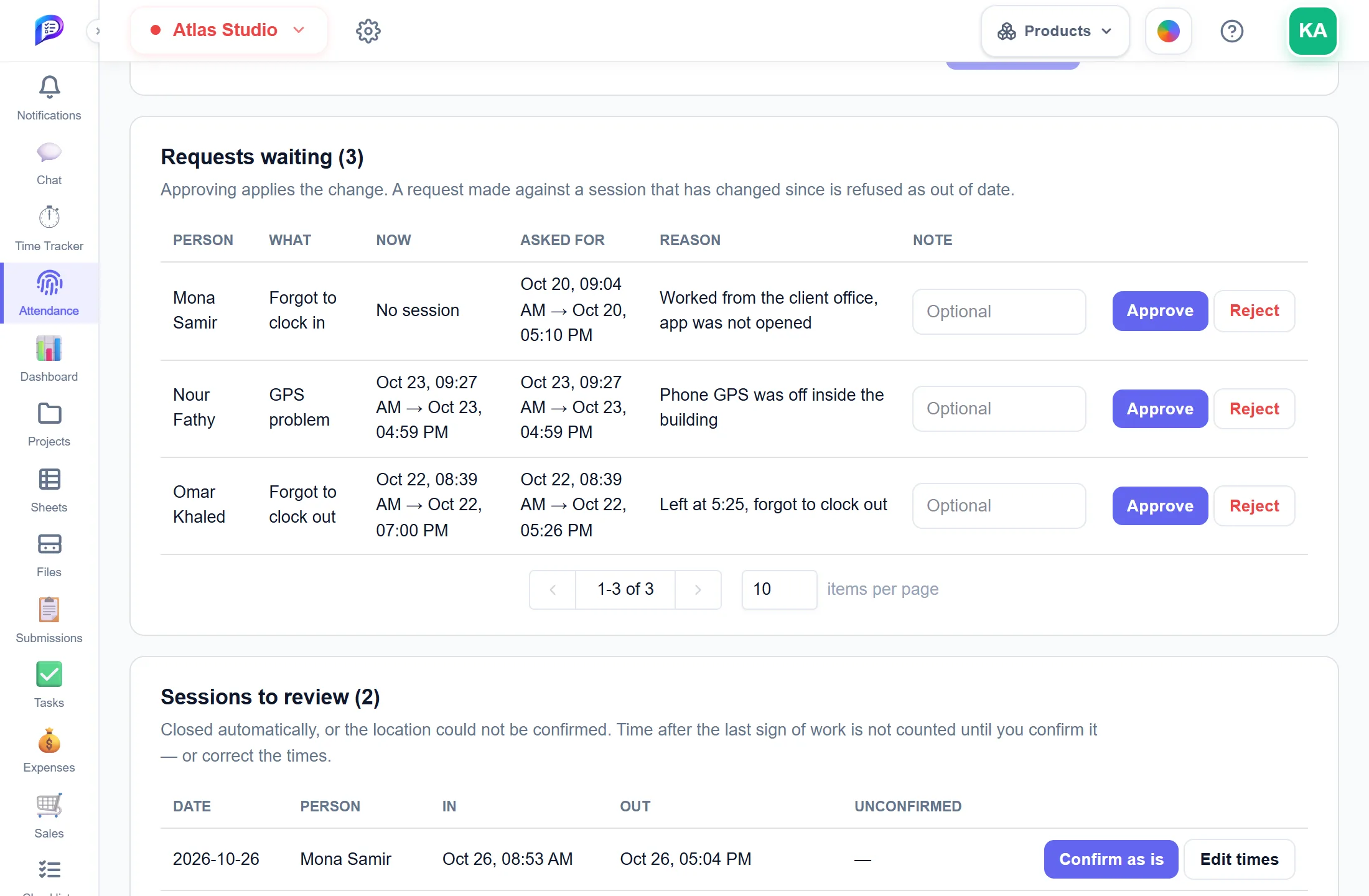
Forgot to clock in or out, a wrong time, a GPS problem.
Closed automatically, or a location that could not be confirmed.
Approving applies the change, with an optional note.
Unconfirmed time never counts until a manager decides.
- 1Requests waitingForgot to clock in or out, a wrong time, a GPS problem.
- 2Approve or rejectApproving applies the change, with an optional note.
- 3Sessions to reviewClosed automatically, or a location that could not be confirmed.
- 4Confirm or fixUnconfirmed time never counts until a manager decides.
Rules for each group of people
Working hours, work mode, offices, location checks, breaks and timer rules — one profile per group.
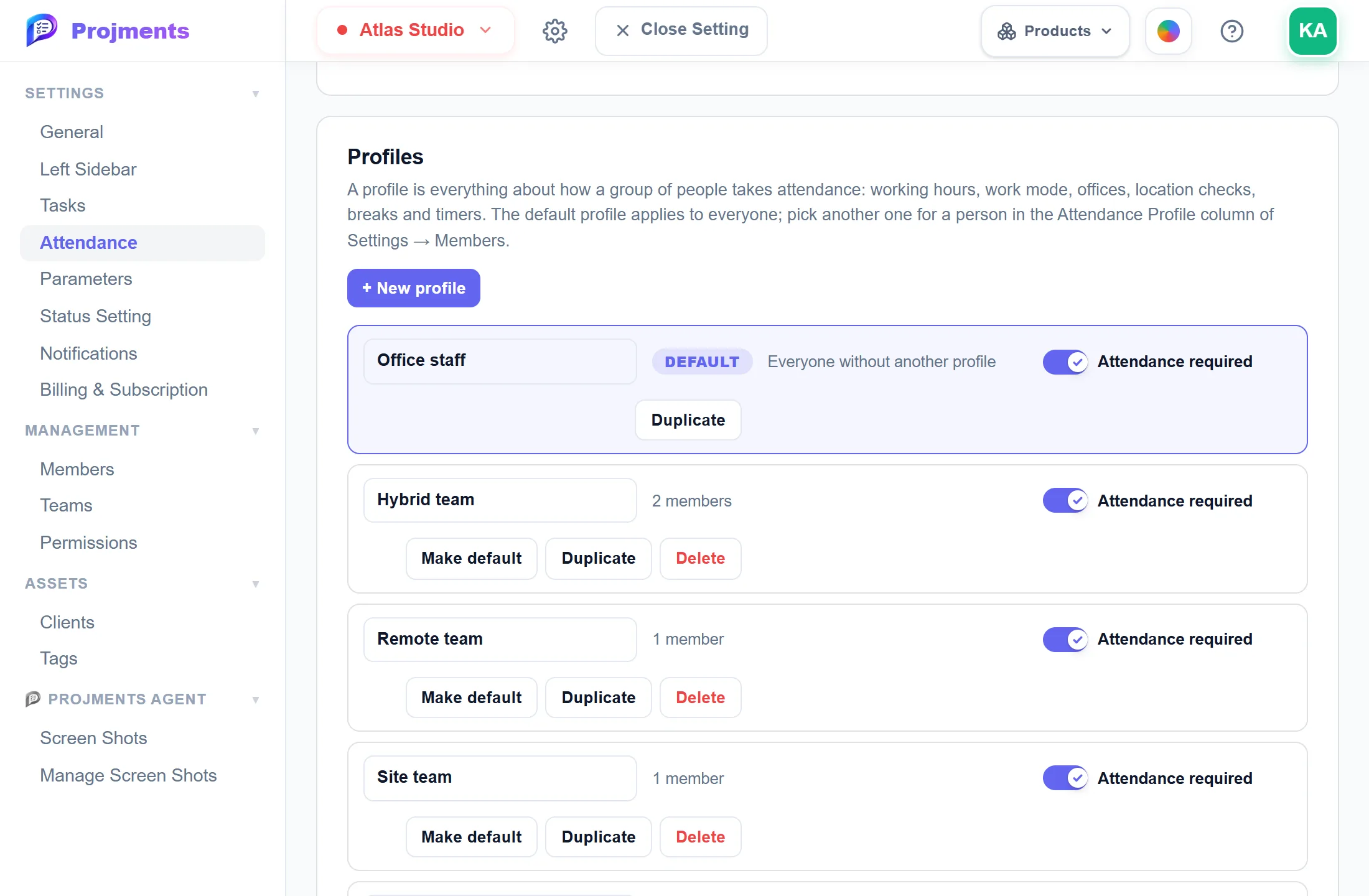
Start one from scratch or duplicate another.
Pick a profile per person in Settings → Members.
Applies to everyone without another one.
Switch it off for people who never clock in.
- 1New profileStart one from scratch or duplicate another.
- 2The default profileApplies to everyone without another one.
- 3Attendance requiredSwitch it off for people who never clock in.
- 4Office, remote or hybridPick a profile per person in Settings → Members.
Good to know
Off until you switch it on
The owner turns Attendance on in Settings → Attendance. Until then nobody sees a Clock in button and timers work as before.
Location only at the tap
An office clock-in reads the location once, when you tap. Remote is never located, and exact coordinates are deleted after 30 days by default.
On your phone too
The Android app has its own Attendance page, and the same clock card sits at the top of its Timer screen.
Forgot to clock out
A session nobody closes is closed automatically. The time after the last sign of work does not count until a manager confirms it.
Timers follow attendance
A workspace can require a clock-in before any task timer starts, and decide what a break does to a running timer.
Ten attendance reports
Daily, Monthly, Late Arrivals, Absences, Break Time, Attendance vs Tracked Time and more, in the Reports page (Professional).
Works hand in hand with
The pictures on this page are screenshots of Projments with a sample company's data.
Ready to Supercharge Your Team?
Projects, time, collaboration and results — all in one workspace.
✓Free plan available✓No credit card required✓Cancel anytime