Every task in a List, a Board or a Flow
Tasks are the day-to-day unit of work. Each carries an assignee, priority, status, dates, planned hours and a tag, across every project you can reach.
Every plan, including Free
Tasks in 5 minutes
Every step on the real app. Jump to any chapter.
Every task, every detail
All your tasks across projects, with filters on every column.
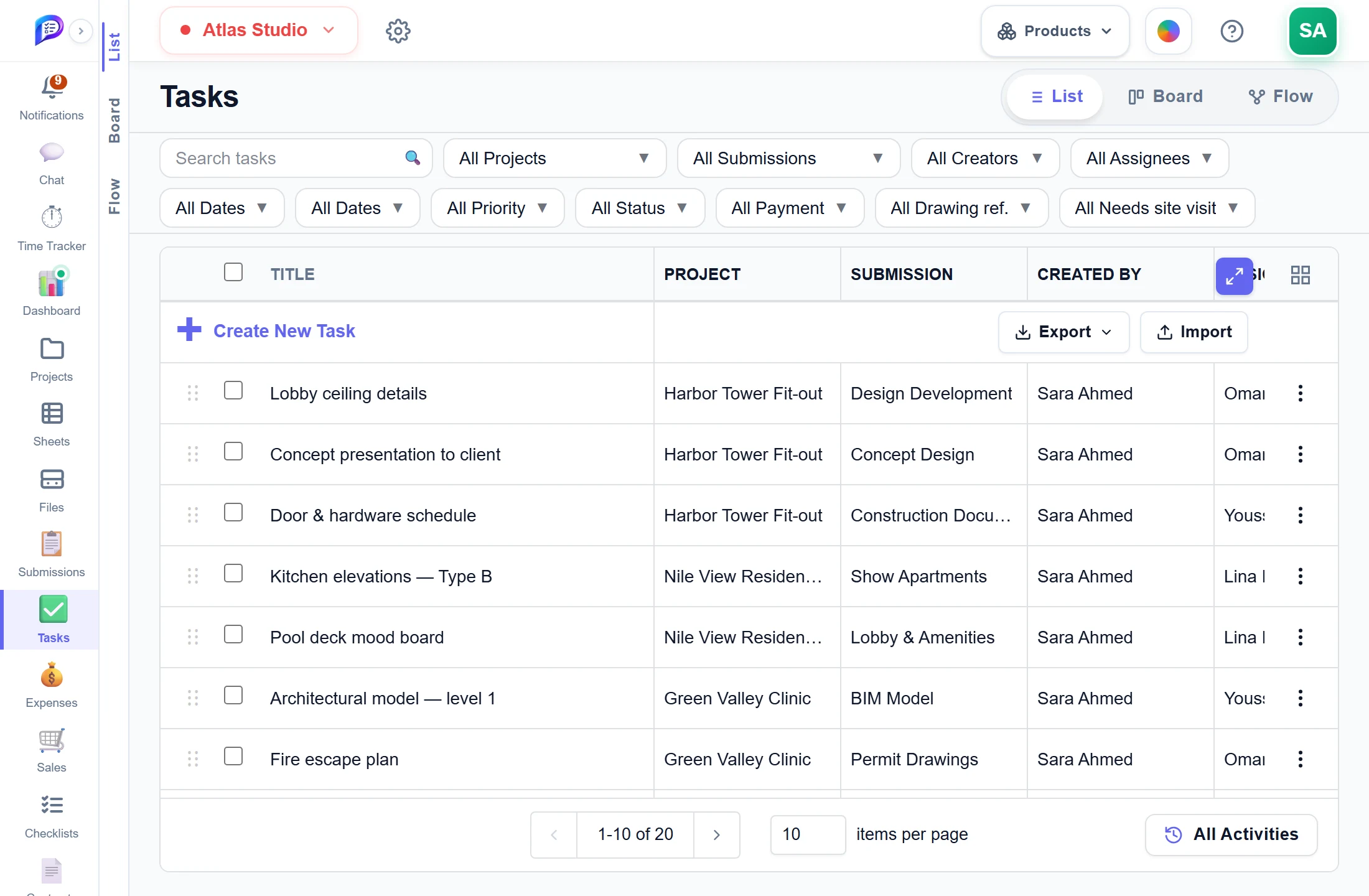
Add a task straight into the list.
Status, assignee, dates and hours, cell by cell.
List, Board or Flow.
Project, assignee, dates, priority, status, payment and your own fields.
- 1FiltersProject, assignee, dates, priority, status, payment and your own fields.
- 2Create in placeAdd a task straight into the list.
- 3Edit in the rowStatus, assignee, dates and hours, cell by cell.
- 4Three viewsList, Board or Flow.
Drag across a board
One column per status — drag a card to move it on.
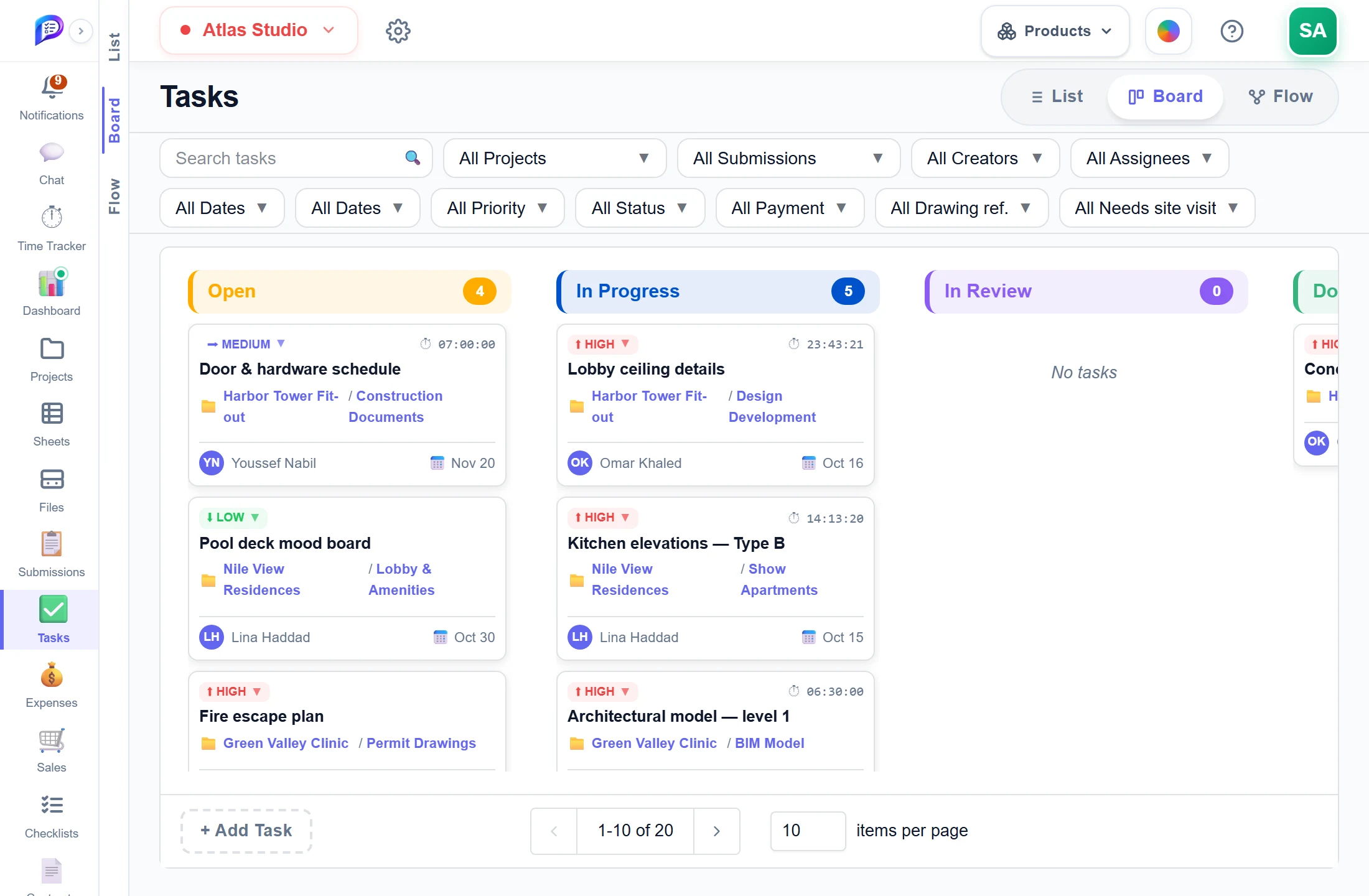
Your own statuses, in your own colours.
The assignee on every card.
Logged time and the due date at a glance.
Shown on every card.
- 1A column per statusYour own statuses, in your own colours.
- 2PriorityShown on every card.
- 3Live time on cardsLogged time and the due date at a glance.
- 4Who is on itThe assignee on every card.
Map the work as a flow
Drop real tasks on a canvas and connect them — with decisions, start and end points.
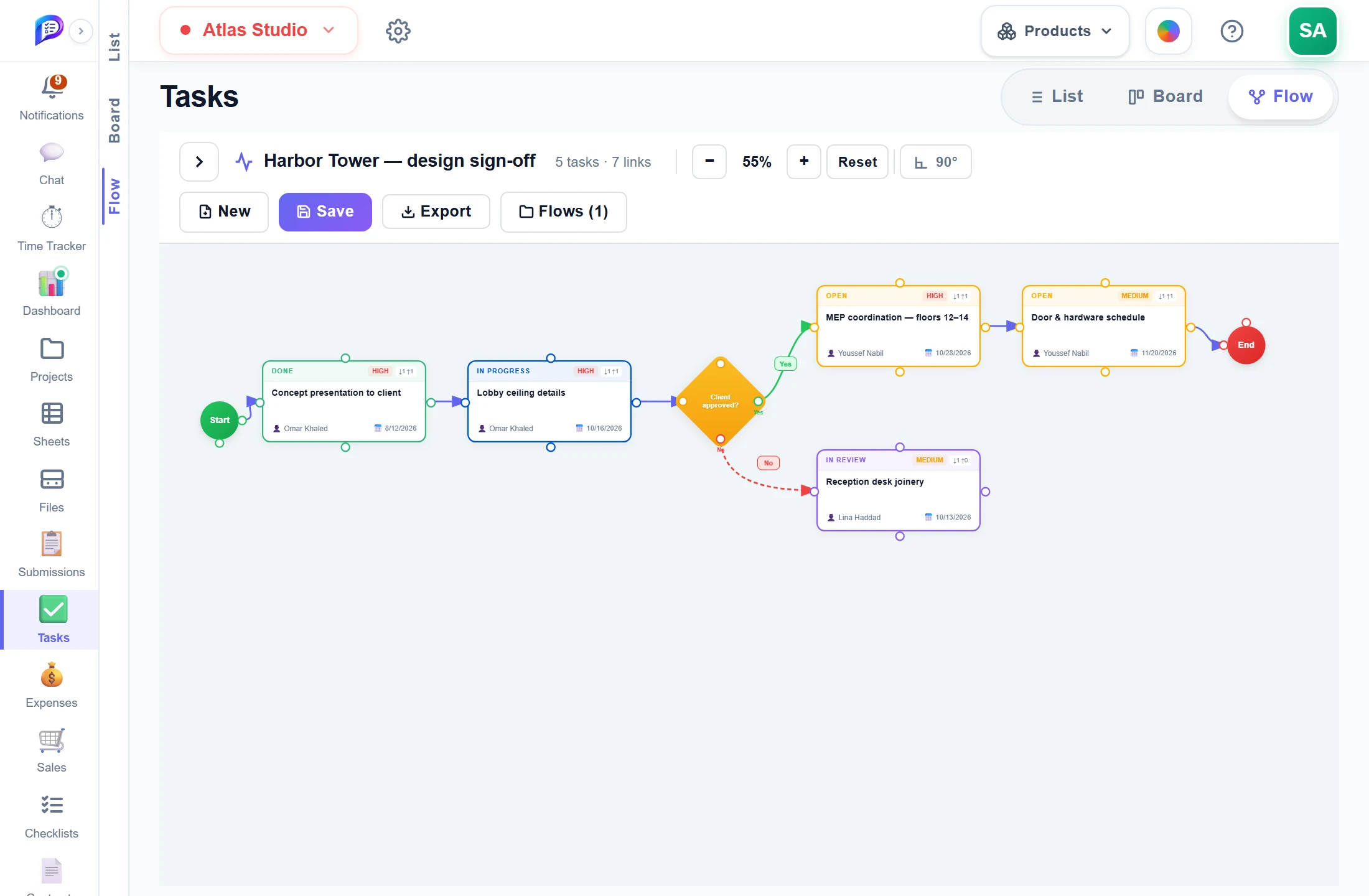
Open, rename or delete the flows you saved.
Each card is a task, with its status, priority, assignee and due date.
Mark where the work begins and finishes.
Keep several flows, and export each as PNG or PDF.
Branch the flow: Yes one way, No the other.
- 1Start and EndMark where the work begins and finishes.
- 2Real tasksEach card is a task, with its status, priority, assignee and due date.
- 3DecisionsBranch the flow: Yes one way, No the other.
- 4Save and exportKeep several flows, and export each as PNG or PDF.
- 5Saved flowsOpen, rename or delete the flows you saved.
Turn a task’s hours into a payment
In Expenses, open Create New Expense and switch on Pay for logged hours. Pick the task, tick its hours — the total becomes the amount.
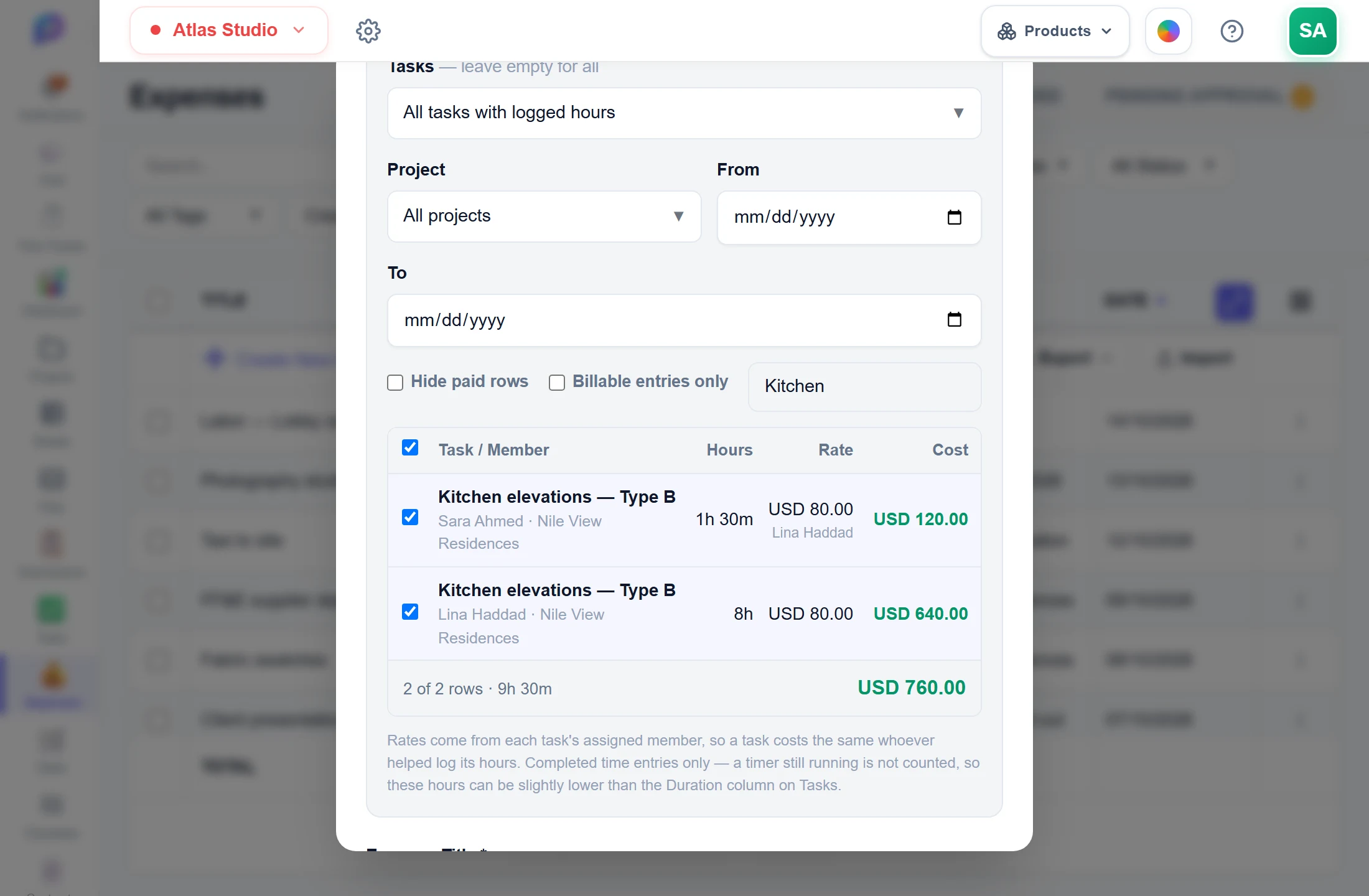
Hours already paid are remembered; only the rest is offered.
One row per task and person, from finished time entries.
Ticked rows add up into the expense.
By task — what did it cost? — or by member — what do we owe them?
Hours × the assignee’s billable rate = the cost.
- 1Pick the workBy task — what did it cost? — or by member — what do we owe them?
- 2Every logged hourOne row per task and person, from finished time entries.
- 3Priced for youHours × the assignee’s billable rate = the cost.
- 4Never pay twiceHours already paid are remembered; only the rest is offered.
- 5The total is the amountTicked rows add up into the expense.
Saved as a labor expense
Create Expense adds it to the list with a ⏱ badge for the hours it pays — and it goes through the normal approval.
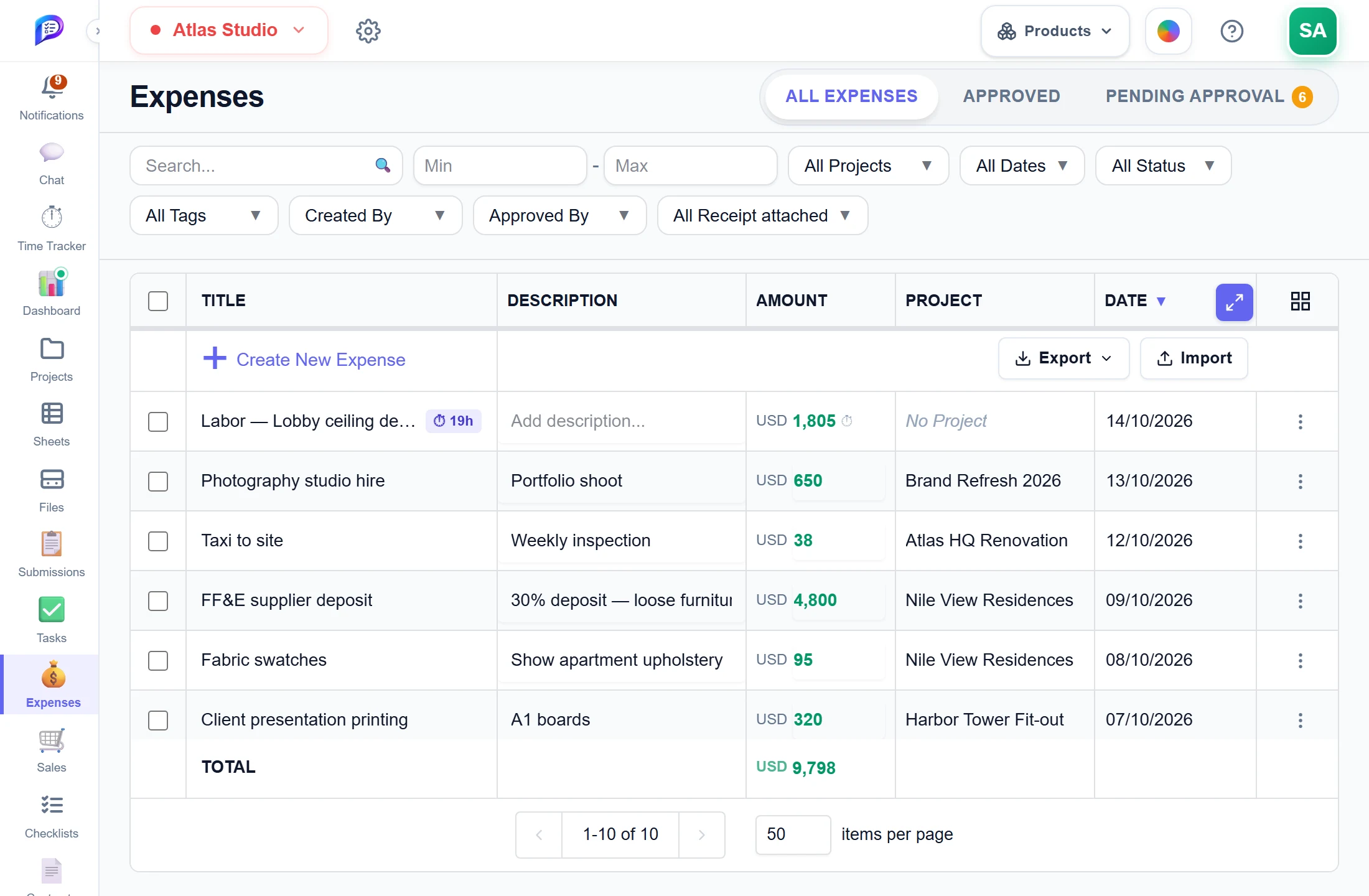
The ⏱ badge shows the hours it pays for.
It is approved like any other expense.
Exactly the priced hours you ticked.
- 1A labor expenseThe ⏱ badge shows the hours it pays for.
- 2The amount, calculatedExactly the priced hours you ticked.
- 3Normal approvalIt is approved like any other expense.
Every task shows if it is paid
Back on Tasks, the Payment column shows each task as Unpaid, Awaiting approval, Partly paid or Paid — worked out live from those expenses.
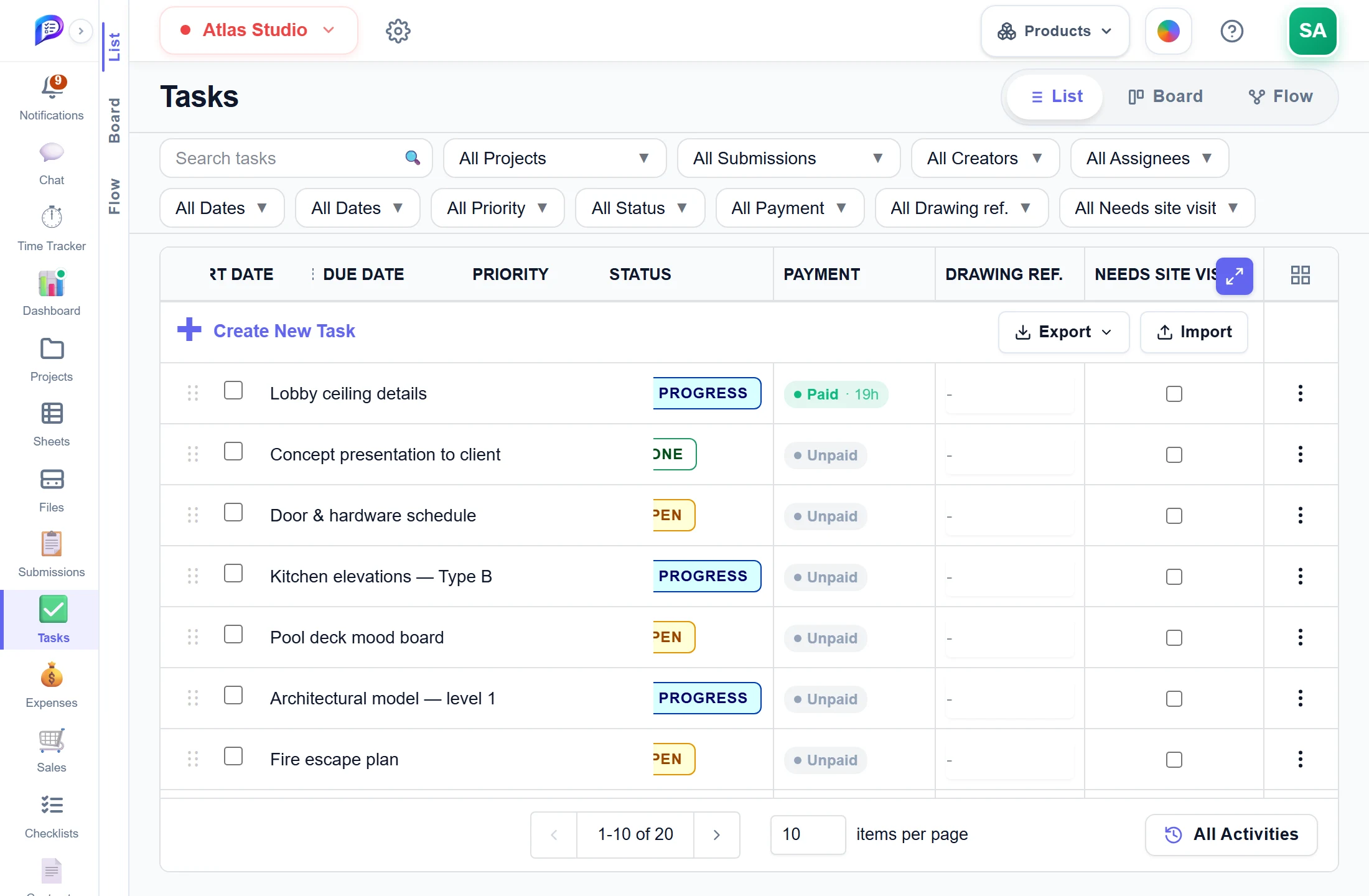
Find what is still to be paid.
No expense covers its hours yet.
On every task, worked out live from labor expenses.
Approved expenses cover all the time logged on it.
- 1The Payment columnOn every task, worked out live from labor expenses.
- 2PaidApproved expenses cover all the time logged on it.
- 3UnpaidNo expense covers its hours yet.
- 4Filter by paymentFind what is still to be paid.
Decide where time is tracked
Defaults every new task starts with: which apps may run its timer, screenshots and manual hours.
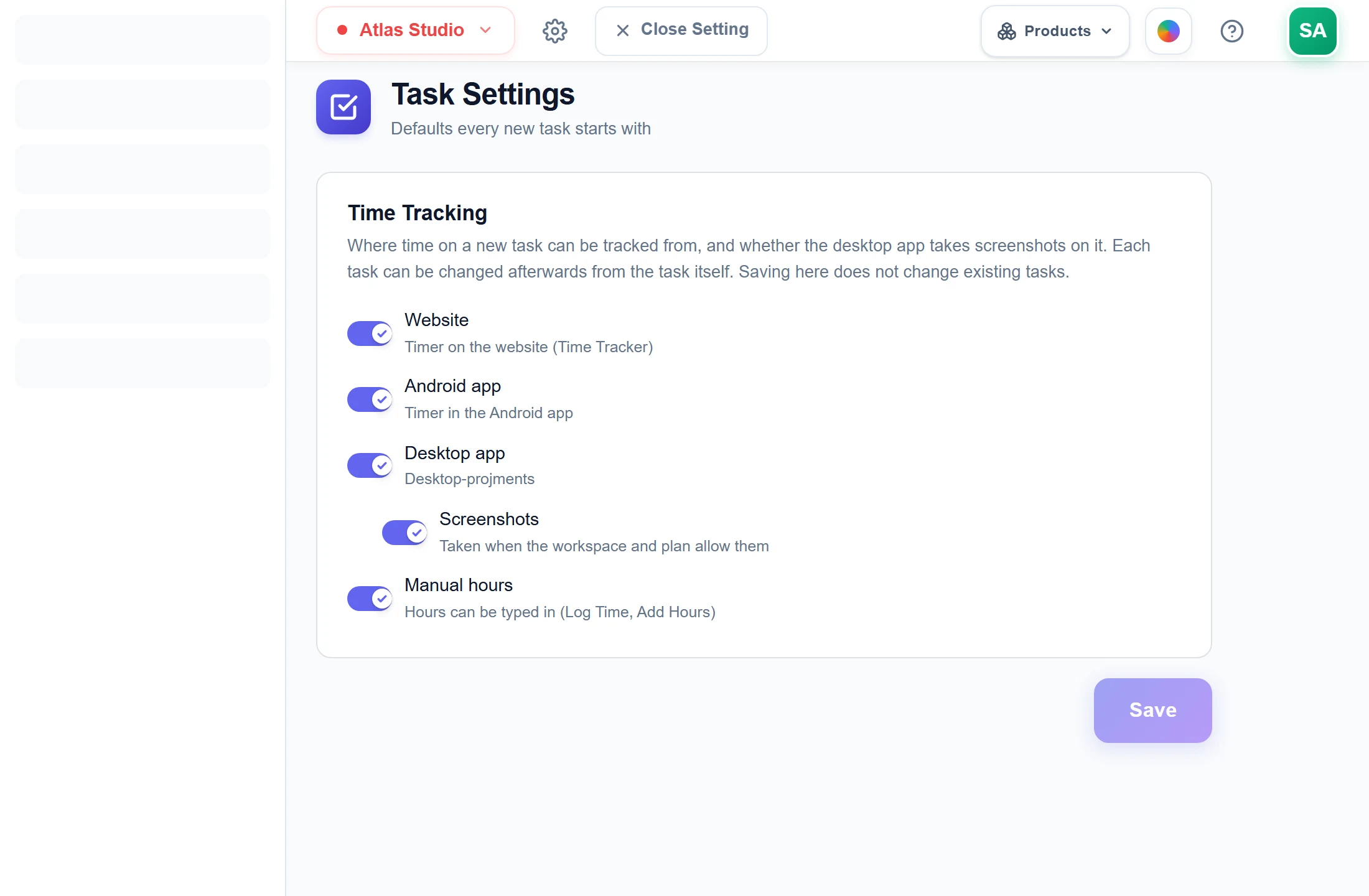
May the timer run in the browser?
Take screenshots while it runs (Professional).
Allow typing hours in by hand.
May it run on the phone?
May it run in the desktop app?
- 1Website timerMay the timer run in the browser?
- 2Android appMay it run on the phone?
- 3Desktop appMay it run in the desktop app?
- 4ScreenshotsTake screenshots while it runs (Professional).
- 5Manual hoursAllow typing hours in by hand.
Good to know
Three views
List on every plan, a Board with one column per status on Starter, and a Flow canvas for workflow diagrams on Professional.
Plans within a budget
Planned hours come from the submission’s plan or the project’s contract hours, so a task can never be planned past what is left.
Where time may be tracked
Per-task switches allow the website, Android app or Desktop app timer, screenshots, and manual hours.
Has it been paid?
The Payment column shows Unpaid, Awaiting approval, Partly paid or Paid, worked out live from labor expenses.
Your own fields
Add Text, Number, Date, Dropdown or Yes/No parameters. Each becomes a column with its own filter for the whole workspace.
Import and export
Import up to 500 rows from .xlsx, .xls or .csv, checked before any task is created, and export to Excel or CSV.
Works hand in hand with
The pictures on this page are screenshots of Projments with a sample company's data.
Ready to Supercharge Your Team?
Projects, time, collaboration and results — all in one workspace.
✓Free plan available✓No credit card required✓Cancel anytime