Plan the hours. See where it lands.
Put planned hours on submissions, compare them with the time your team logs, and use each project’s Forecast tab to see its health, burn rate and the date the budget runs out.
Professional plan
Where the budget lands
Hours against the contract budget, the burn rate and the date the budget runs out.
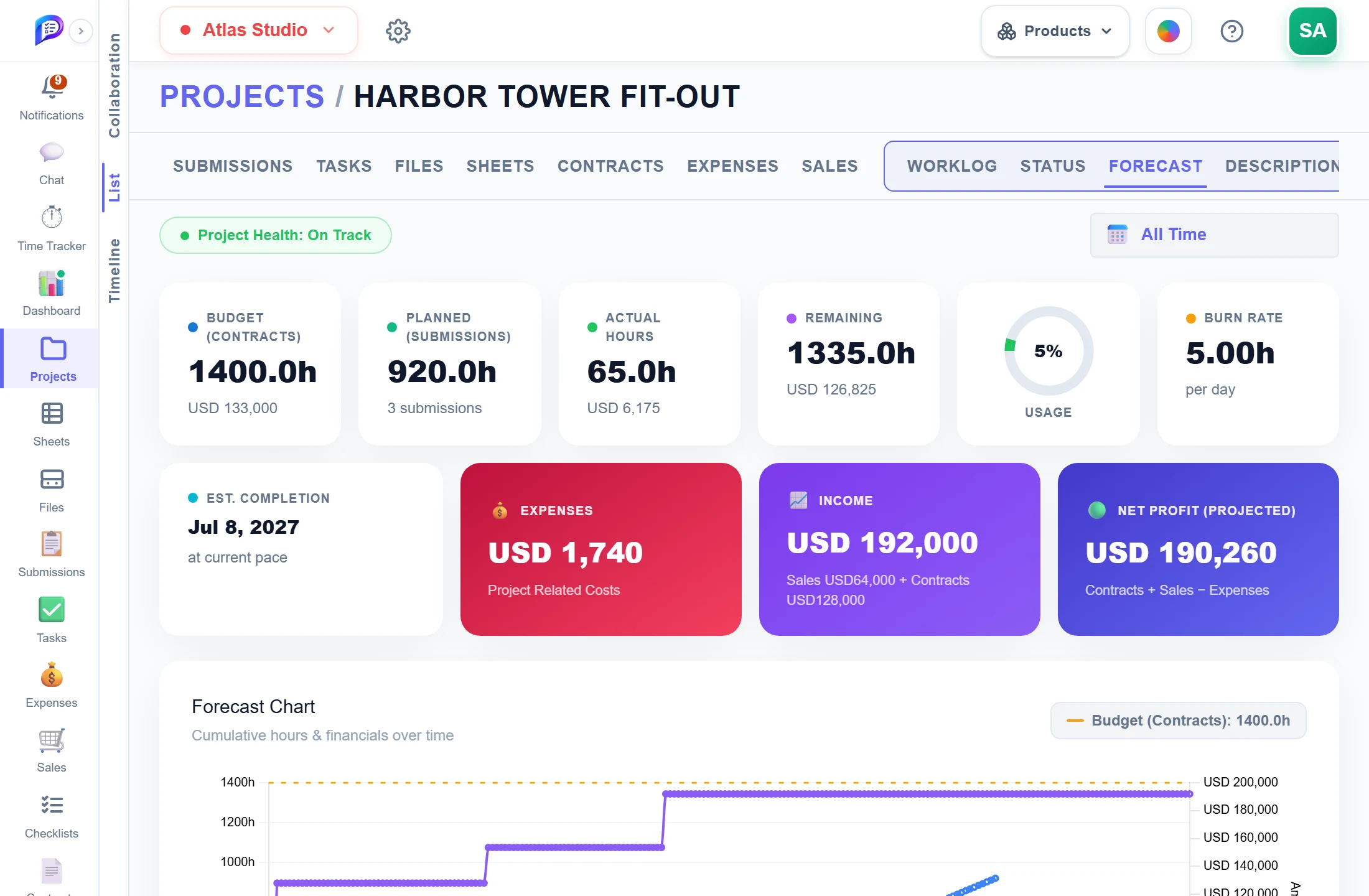
On Track, At Risk or Over Budget.
Contract hours, planned hours and hours logged.
When the budget runs out at the current pace.
Hours per day since the first entry.
Expenses, income and projected profit.
- 1Project HealthOn Track, At Risk or Over Budget.
- 2Budget, planned, actualContract hours, planned hours and hours logged.
- 3Burn rateHours per day since the first entry.
- 4Estimated completionWhen the budget runs out at the current pace.
- 5Money tooExpenses, income and projected profit.
Hours and money on one page
Tasks, submissions, hours and money for the project, on one page.
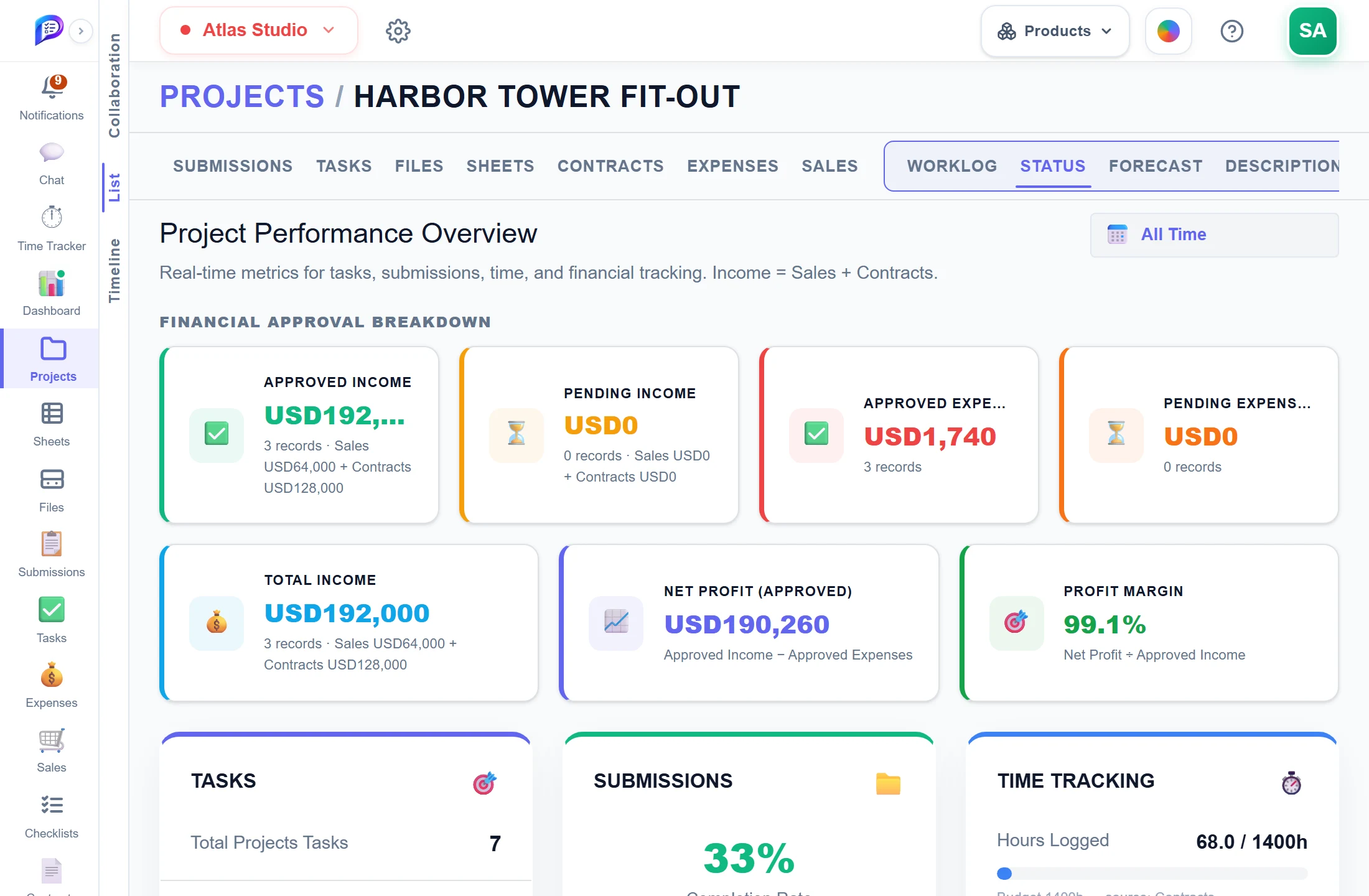
Tasks, submissions, hours, net profit and margin.
Next to Worklog, Forecast and Description.
- 1The Status tabNext to Worklog, Forecast and Description.
- 2Everything at onceTasks, submissions, hours, net profit and margin.
Good to know
Planned hours on submissions
The Projects list shows Planned (Submissions) next to Total Duration, the time the team has actually logged.
Overrun highlighting
When logged time passes planned time, the row or the figure is flagged. Colour, style and bell notifications are set in Settings.
Project Health
The Forecast tab reads On Track, At Risk (80% or more of contract hours used) or Over Budget.
Burn rate and finish date
Hours per day since the first time entry, and the date the budget runs out at that pace.
Forecast Chart
Cumulative actual and planned hours against the contract budget ceiling, with income and expenses on a second axis.
Planned vs Actual report
Planned Time, Actual Time and Variance (Left or Over) per group, following your Group By and filters.
Works hand in hand with
The pictures on this page are screenshots of Projments with a sample company's data.
Ready to Supercharge Your Team?
Projects, time, collaboration and results — all in one workspace.
✓Free plan available✓No credit card required✓Cancel anytime